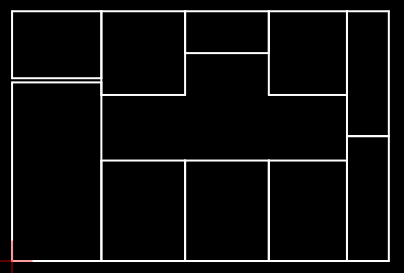
I work for a cabinet shop, and I’ve manually been drawing approx 60 rectangles per kitchen. The sizes are generated from an Excel spreadsheet and are predefined based off the size of the cabinets.
I’ve seen (but don’t yet understand) that you can import X,Y information into QCAD from a CSV. Does this relate to importing rectangles?
Example sizes:
8.25" x 22"
4.25" " 20"
3.55" x 20"
3.55" x 12.95"
What about attributes (General Properties), active/cast Layer? e_geek
[Layer, Color, Lineweight, Linetype, (drawing order)]
What about custom properties? e_ugeek
Pairwise [key, value]
How about rounded rectangles or beveled rectangles?
Kind of macro’s for QCAD …
I dropped the project in favor for others …
Not many people have the same needs.
On top, I alter the code on the fly to suit the requirements.
Just for fun - I blame the pandemic for that!
Thinking about how that could be solved for someone with zero scripting skills like me. What we have is the size list and … Excel. Good! I know one or two things about Excel … e_surprised
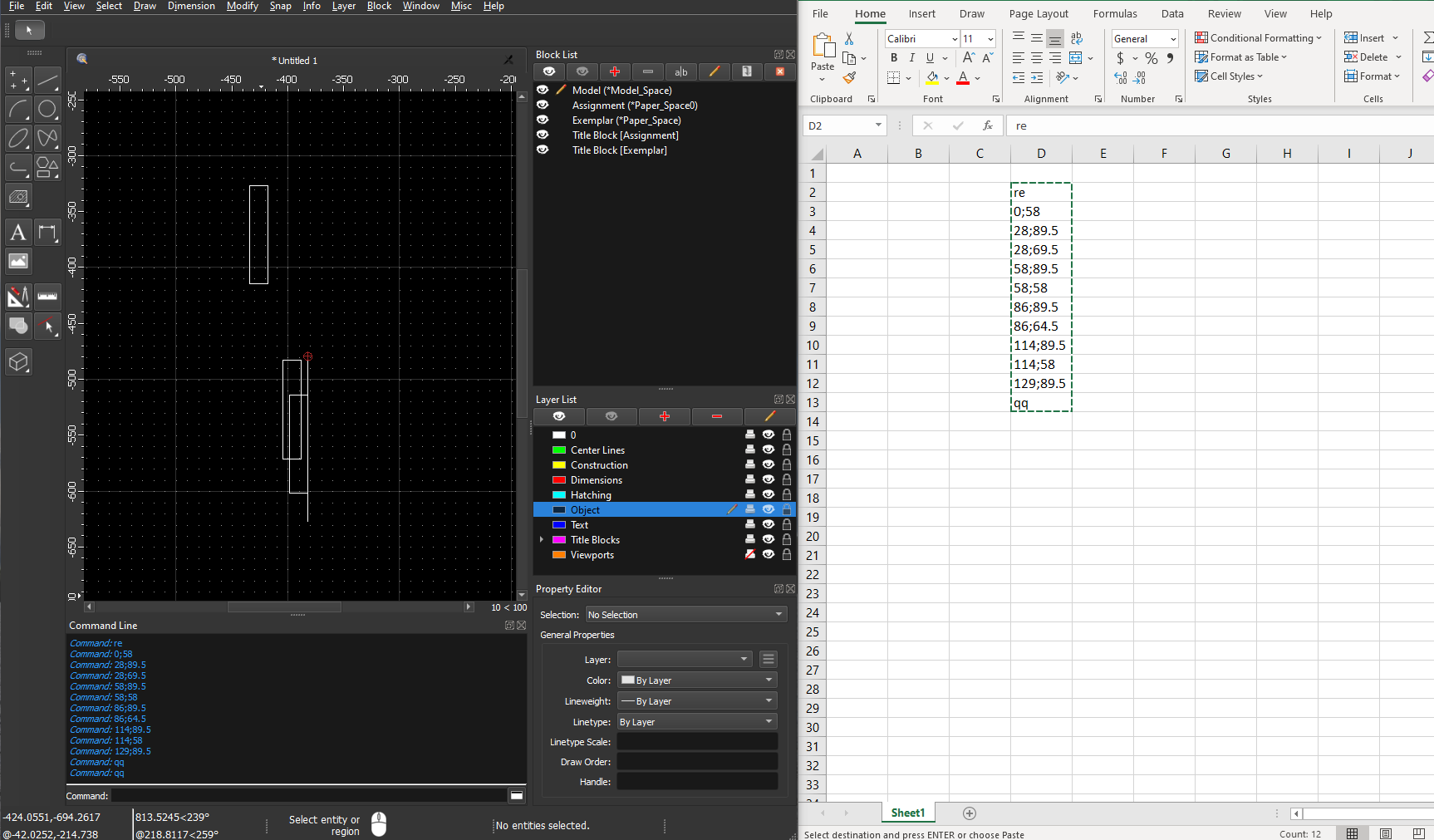
Ok, I prepared an Excel spreadsheet, copy/paste the size list (random numbers) into the spreadsheet, searched/replaced in Excel to get rid of the useless unit etc. symbols - and my Excel function went to work immediately to created a Command Line list for QCAD with those information. This list copied - insert into QCAD Command Line - success.
I’m sure coder will call that “Primitive”. However - it works.
I thought I’d try copying some of your spreadsheet cells to follow along with what you were showing Kramerica. I typed the values in excel real quick then copied and pasted them into the CL. But I must be doing something wrong! I’m seeing a “command” for all of the lines in the CL rather than “coordinate”. Not sure what I did wrong.
What is your "Cartesian coordinate separator? In this example it has to be a ;
Change the ; to the separator used by your QCAD or change it below: Application Preferences “Coordinate Format”
This is a great forum! Discovering multiple ways to skin the cat. I’ll be busy for the next week with another priority, but I’ll dabble with these directions when I get a chance.
I will keep the forum posted with my progress - or lack there of. lol
The Gif is great, but flipping a bit too quick for me to see the dimensions in excel relative to how they are drawn in QCAD.
I had some success by writing:
re
0,59
28,89
84,65
22,43
qq
But it only drew two rectangles, and I’m not sure what the lines are relative to. Am I understanding it correctly?
re = rectangle
X,Y position 1 (first corner of first rectangle)
X,Y position 2 (second corner of first rectangle)
X,Y position 3 (first corner of second rectangle)
X,Y position 4 (second corner of second rectangle)
qq = Quit Command (or something like that)
Also, if these need to be polylines for CAM purposes - do I need to go the script route?
The lines are relative to Absolute 0;0. The cabinet calculation starts from the left to the right. Your understanding is correct - Re is the QCAD shortcut to draw a rectangle. qq = QCAD command “Reset/Idle”. The RE command is asking for the first X/Y point and then asking for the second X/Y point of the rectangles. Position/calculation is based on Absolute 0 and the last rectangle to the left. For the overhead cabinets (I don’t know the correct term for them ) the overall hight (89.5) is also considered in the calculation. There are many variants how you can set up the Excel Spreadsheet - depends on your relevant manufacturing workflow. Ones it is set for your requirements you have just to copy/paste the size list into that spreadsheet and the command list will be created immediately by Excel …
No. QCAD will use the last RE settings in the option bar. Make sure “Create Polylines” is ticked before you run the command list and you will get your polylines. But if you have forgotten you can do it later too (OG or OC).
What Husky exploit is the multi-line paste for a tool.
Here ‘RE’ or a Rectangle from 2 points.
Followed by 2 references each rectangle.
References of opposite corners in your native format.
Without influence on the persistent tools settings.
For tools without a dialog popping up.
…
..
.
That goes well for one single method.
But may fail at some point when mixing tools.
In Andrews words:
For some reason QCAD will double your last entry:
That is why Husky terminates the list with ‘QQ’ = Reset/Idle
Notice in the GIF that ‘QQ’ is doubled up what doesn’t harm anything.
For some reasons it may only work on the second trial …
See mixed outcomes in mentioned topics.
We exhausted this method for multiple tools.
That is where the script comes in.
Now John Hyslop and everyone else can draw panels with cut-outs.
Table tops too. Whatever you desire.
There is no limit to what the script can cast from CSV, only but your spreadsheet abilities.
And now I rest my case. ‘Just for fun’ … I think not.
If Husky really wants that, I will withdraw the free and functional script:
I installed the script, and ran one of the test files. Worked flawlessly. Now I need to sharpen my google sheets skills, and have the shapes drawn in an organized manner.


 ) the overall hight (89.5) is also considered in the calculation. There are many variants how you can set up the Excel Spreadsheet - depends on your relevant manufacturing workflow. Ones it is set for your requirements you have just to copy/paste the size list into that spreadsheet and the command list will be created immediately by Excel …