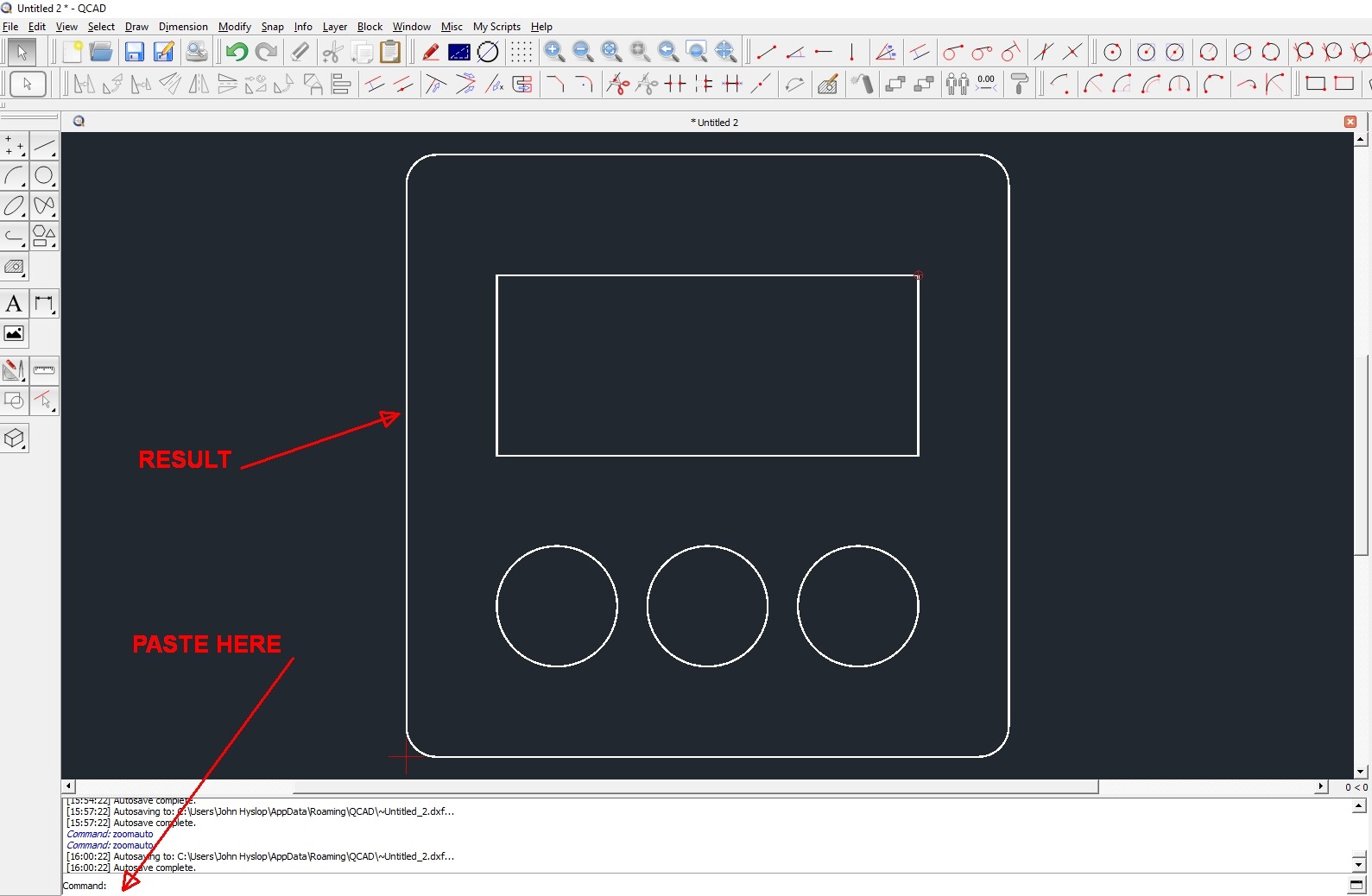
I’m working on a little project and need some help…
QCad Version:
3.24.3.0 (3.24.3)
Windows10
Is there any documentation on what can be pasted into the command line in Qcad? Everything below works except for the
CP command “Copy To Clipboard” if I type this manually it works
but it doesn’t from pasted text below… any Ideas? I’ve tried extra carriage returns… Also if I use MV " Move/Copy Command " is there a way to stop the dialog from poping up?
This works except the last part? Copy and paste below text into command line
QQ
LINE
5,0
95,0
QQ
LINE
100,5
100,95
QQ
LINE
95,100
5,100
QQ
LINE
0,95
0,5
QQ
AR
5,5
5
180
270
95,5
5
270
0
95,95
5
0
90
5,95
5
90
180
QQ
CIRCLE
25,25
10
CIRCLE
50,25
10
CIRCLE
75,25
10
QQ
RECTANGLE
15,50
85,80
QQ
ZA
QQ
SELECTALL
CP
It was a little help but it still would be nice to know what can and
can’t be read into the command line.. I purchased the ebook a while
back hoping it would have all this info but it doesn’t
Again Thanks for the Help.. hope you’re well, take care..
I think that it does fairly everything that we can do with the keyboard.
What we came up with is that it fails for the final commands of a list.
Or doubles them.
The multi-line entry capebility was not ment for the use with marco lists.
There is also a thing with Windows.
In case the list is made in a Win app then we send windows style EOLs.(end off line)
With a round trip passing by Notepad or NPP, converting the EOL, the results may differ.
So, in the end we dropped it.
Simple scripting is the way.
Recording and playing macro’s could be a nice feature.
Intrigued by this, I copied your list of commands into a text file named ‘macro.txt’. I then copied everything in the file and pasted it in to the command line of QCAD. Everything worked, including CP. What you need is an ‘end of line’ character after the CP. So you need a blank line at the end of the text file. When you copy everything be sure to include the last empty line.
This is a manual way of creating macros. If you want to change or test your commands, having them in a simple text file is the best way.
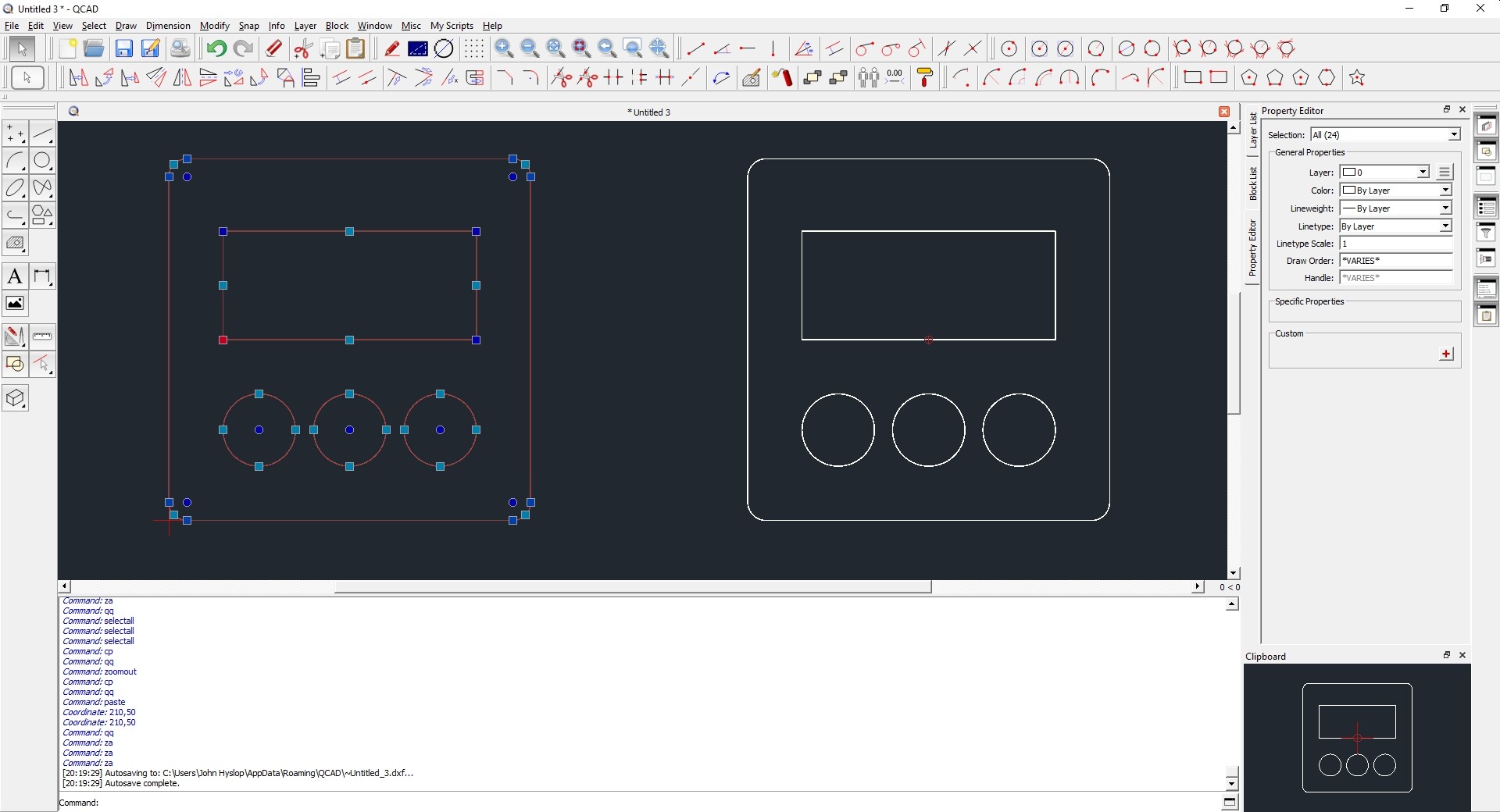
I changed the end of the text file to the following, in order to confirm that it worked
…
CP
QQ
PASTE
210,50
QQ
ZA
…
Note the blank line at the end (after ZA). Also there is a blank line after the PASTE co-ordinate which terminates the paste command. ZA then makes the whole drawing visible. (Ignore the ellipsis (—), they are not added to the text file).
I don’t know of any way to stop the dialogue box from popping up. Any command that pops up a dialogue box is probably not suitable for this method.
(There might be a setting in QCAD to switch off the display of dialogue boxes.)
I hope you find this helpful.
(Note: I tested this in Linux, but it should work the same way under Windows and Mac OS.)
Thanks Riverbuoy
I’m glad to hear you learned something new
Thanks for your post.
CVH Thanks for confirming this only works in Linux
Saves me pulling my hair out
Also good to know you can switch the dialogs off…
Scratches head… I wonder if there is a way of duplicating
the Linux character that’s used for a carriage return in windows???
Maybe a hidden character??
Alt + Something Something Something Something…??
Win uses CR LF as EOL the others use LF as EOL.
You can’t fool this without changing OS.
NPP lets you convert this for use in a file but as soon you grab this text in a Win App you end up with Win EOLs.
I don’t think there is a solution on the user side.
I addressed this EOL thing in an other topic and Andrew knows about it.
Hi CVH
The one I posted? I can’t see any text on strange outcomes?
Or is it in the topic posted on here a while ago?
I thought I’d nailed it when it copied and Pasted ahh well..
It worked because I used the sequence a second time.
It din’t on a first run.
I question:
End with QQ to terminate might do the trick but I think I tried that.
Could a series of dummies at the end work out.
Thinking out loud: A simple space: = shortcut to command line;
or a move to nowhere … a rotate zero …
or any command that won’t hurt when not fully interpreted.
Like I said, we/I dropped it as being unreliable.
Regards
CVH
Looking into this with a windows version of QCAD, I’ve discovered the problem is with ‘SELECTALL’ in file ‘Qcad Run Commands.txt’.
SELECTALL takes so long to complete that the copy command has been and gone before SELECTALL has finished. I don’t know of any way to pause or halt QCAD, so the solution is to delete everything after SELECTALL then add
QQ
ZA
to the end of the file to see the whole drawimg.
Then create a second file containing
QQ
CP
QQ
PS
210,50
QQ
ZA
I called this file ‘copy.txt’.
Copy everything in this file and paste it into the command line. Not very satisfactory, but at the moment it is all I can think of.
Manually selecting everything in the drawing seems almost instant on such a small drawing, but pasting is many times faster.
I tried adding multiple QQ’s to the file, multiple blank lines, and other commands to try and slow it down, but it didn’t work.
I think I have a solution, well hack really, I used saveas command to pause
input and all you do is cancel… One thing I have noticed is that commands for
LINES.ARCS,CIRCLES can be executed without any problems..So I will continue
with my stand alone project
commands that take a while to capture screen contents like SELECTALL
make the lines underneath skip… in AutoCad you can use:-
Files Attached for testing..
Cheers
John
PS I had to add .txt to upload .scr file?
PPS I’m not giving up yet… Qcad Run Command with Hack.txt (345 Bytes) DELAY.SCR.txt (87 Bytes)
Ok the project I’m working on is to generate sheet metal parts and add views
like this example this is of a sheet metal tray 150x100 with 25mm outside folds
2mm thick with a Kfactor of 0.41 ( Kfactor = Bend Allowance )
The user will have options to type in size in X & Y fold height , material thickness and Kfactor
the text will then be generated in a combobox in the program with a click button to copy to clipboard.
for Linux users they will need to select the text in combobox not sure if the copytoclipboard works for Linux…
Sample of what can be done, program demo will follow when I’ve sorted out a few things, want to add Cone development
u-bracket development etc…
I wish I knew how to use javascript it could then be easily added into qcad rather than being a stand alone app
Could some users on here test this please, I’ve had 1 private message saying it fails on 1st line command,
I cannot myself recreate this, I’ve tried 32 bit versions, Linux versions, community versions all in a virtual machine
and this works..?
Simply copy and paste text into command line in QCAD and it should draw 2 views and a developed blank..
If I have lots of people saying it doesn’t work I’ll drop my project, but for now I’m working on it, sheet metal tools..