This is the home for all future versions of any Qcad Theme App, this includes Qcad User Theme, Qcad Theme Designer, Qcad Theme Lite and possibly Qcad Theme TabBar.
Any future version of a Qcad Theme App will come packaged as an installer / uninstaller.
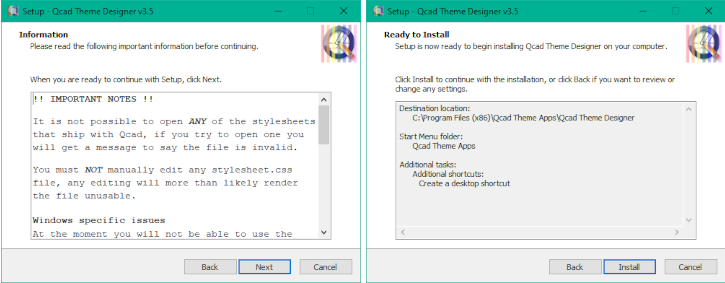
For Windows the installer is a familiar looking app created using Inno Setup. The download will consist of a single .exe file.
See the screen shots below.
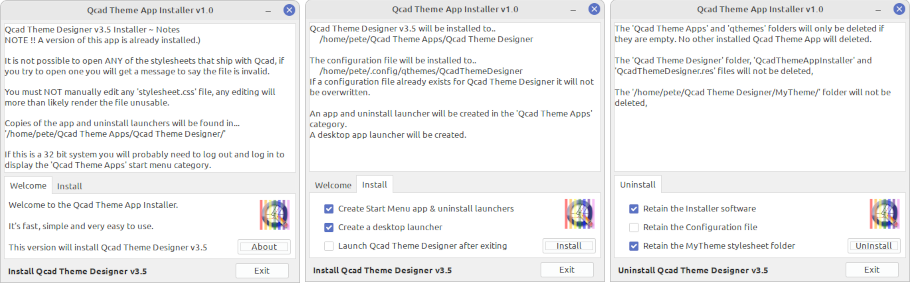
For Linux the installer is Qcad Theme App Installer, a bespoke installer written by myself, it’s very easy to use and has options that you don’t get with the usual deb install package. The download will consist of a single zip file which contains one folder, the folder has within it two files, QcadThemeAppInstaller and a resource file. Unzip the folder to a writeable location, i.e. your desktop, and launch the QcadThemeAppInstaller file to launch the installer. Any pertinent details will appear in the upper information area, this area will change as the various options are checked and unchecked. Depending on how much information is being displayed, a vertical scroll bar will be displayed.
If you are installing to a 32 bit Linux system, and you have selected to create start menu launchers, you will probably need to log out and log in to display the Qcad Theme Apps start menu category.
See the screen shots below.
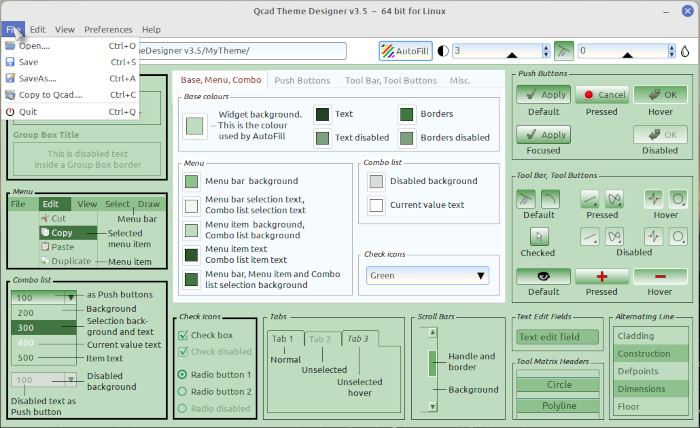
Version 3.5 is a significant update, it introduces some major additions and changes, and a few bug fixes, all as listed below.
ADDITIONS
The majority of the tool buttons have been deleted and moved to a new drop down menu system. The new menus are as follows…
File menu - Open, Save, SaveAs, Copy to Qcad and Quit.
Edit menu - Undo and Redo.
View menu - Load Default Stylesheet and Reload Configuration File.
Preferences menu - Backup and three new options, Browser Position Central, Magnetic Menu Shortcuts and Default Qcad Path.
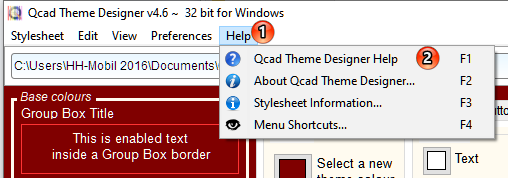
Help menu - About, Stylesheet Basic Information and the new Show Menu Shortcuts.
To compliment the new drop down menu system, a Menu Shortcuts dialogue box has been added. This can remain visible whilst still using the main app. The position of this dialogue is saved to the configuration file. It is accessed via the menu item Help > Show menu shortcuts, or press F3 to show/close the dialogue. If you move the app this dialogue box will move with it, you can stop this behaviour by unchecking the Preferences > Magnetic Menu Shortcuts menu item.
An Autofill Hue slider has been added to complement the AutoFill Brightness slider. The Adjust Autofill colour sample is updated as the slider is adjusted. The Hue value, like the brightness value, is saved with the stylesheet. The Hue value is also displayed in the File Info dialogue.
Icons have been added to the AutoFill Brightness and Autofill Hue sliders. This is to differentiate between the two sliders.
You can now double click either the Hue or Brightness slider to reset it to the value saved in the current stylesheet. You can also double click either slider icon to set the slider value to zero.
The Backup state is now saved to the configuration file. This option is accessed from the menu item Preferences > Backup Stylesheet
The default Qcad folder can now be set via the menu item Preferences > Default Qcad Folder, or by pressing F6. The path to this folder is saved to the configuration file.
You can now use Ctrl+Enter to Select a stylesheet folder in the browser.
The position of the browser is now saved to the configuration file. This can be overridden by the menu item Preferences > Browser Position Central.
A Select menu item has been added to the browser popup menu.
Support for dark themes has been added for Linux and Windows.
CHANGES
All the tool buttons have been replaced by buttons that are more obvious when one has focus, or when the cursor hovers over a tool button, and they are easier to see when using the Tab key to move between the buttons, sliders etc.
The currently active tabs font colour is now dark red (Linux only).
The Check Icons colour drop down list has been replaced with a similar style to the new tool buttons.
The Adjust AutoFill Colour slider has been renamed to AutoFill Brightness.
The AutoFill Brightness slider has been replaced with a similar style to the new tool buttons. The upper limit has also been increased from +6 to +12.
There have been many general visual changes to the tabbed preview area. Specific changes have been made to make the following preview areas look more like the same areas in Qcad…
Combo List
Menu
Scroll bars
Tool Matrix
The tool buttons in the browser have been replaced with the same style as used in the main app. The icons have also been improved upon.
When the default stylesheet is loaded and you click Save, a message is now displayed from where you can click OK to use the SaveAs command.
The message that used to be displayed in SaveAs if changes had been made has been deleted.
FIXED BUGS
An error would occur if the stylesheet.qss file was missing from the do-not-delete folder.
Odd browser behaviour in Windows OS would occur when using ‘Copy to Qcad’ if only QCADCAM was installed.
Undesirable behaviour would occur if the stylesheet.qss file was missing and no previous stylesheet is saved in configuration file. Now, in the event of this scenario, a message will be displayed suggesting how to prevent this error, and that QTD is unable to function, pressing close will terminate the app.
The screenshot is from Linux, in Windows it will look almost identical.
The Linux x32 zip file has been replaced as there was an error in the install app that prevented the start menu items being created. Download and re-install to display the menu items, but don’t forget you may have to log out and in again first !!
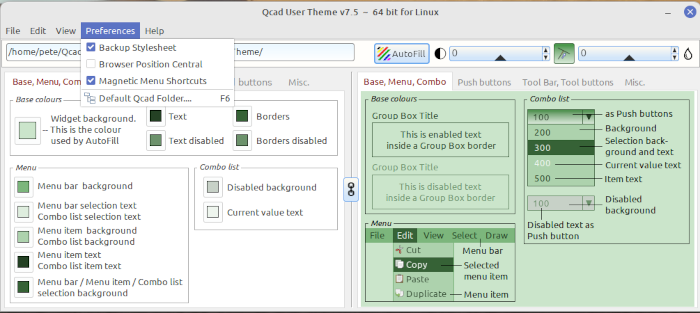
Version 7.5 is a moderate update, it introduces some significant changes, and a few bug fixes. These changes and bug fixes are pretty much the same as introduced in Qcad Theme Designer 3.5 above, so I won’t bore you with the details !!
If you are installing the Linux x32 version, you may have to log out and in again to display the menu launchers.
The screenshot is from Linux, in Windows it will look almost identical.
Version 2.0 is a significant update, it introduces additions and changes as listed below. And even though it’s a ‘Lite’ version, I believe this is now the most useful and easiest app to use out of the three available.
ADDITIONS
Brightness and Hue sliders have been added. As these are adjusted you’ll see the effect on the stylesheet colours in real time. Their values are saved with the stylesheet.
A status bar has been added at the bottom of the app, this will display all hint tips from the drop down menu, tool bar and preview areas.
The four tool bar buttons that where on the right side have been deleted and moved to a new drop down menu, along with a few other new menu items. All menu items have a shortcut available. The new menus are as follows…
File menu - Open, Save, SaveAs and Quit.
Restore Colours menu - Restore All, Restore Background, Restore Check Icon and Restore Brightness & Hue.
The above menu items restore to their respective saved colour values.
Help menu - About and Stylesheet Basic Information.
CHANGES
The four tool bar buttons that where on the right side have been deleted and moved to a new drop down menu.
As with the latest versions of QTD and QUT, the tool buttons and drop down icon colour list, have been replaced by ones that are more obvious when one has focus, or when the cursor hovers over them, they are also easier to see when using the Tab key to move between the buttons, sliders etc.
There have been many visual changes to the preview area. These changes have been made to make the preview area look more like the corresponding areas in Qcad.
This GIF preview was created in Linux, the Windows version will look almost identical.
Version 7.6 fixes the Copy/Paste error.
If you are installing the Linux x32 version, you may have to log out and in again to display the menu launchers.
Version 4.0 is a very significant update, it introduces some additions and major changes, all as listed below.
ADDITIONS
A status bar has been added at the bottom of the app, this displays all hint tips from the drop down menu, and any controls. It also displays the Undo/Redo count to the right hand side.
The Brightness and Hue values can be adjusted by using the ,< and .> keys when either control has focus.
An indexed PDF help file is now available by pressing F1.
CHANGES
The Undo/Redo function has been totally rewritten, and the old limit of 210 Undo events has been increased ‘slightly’, the number of Undo/Redo events is now only limited by your system !!.
The AutoFill and Preview buttons have been removed. Now, when the Brightness and Hue values are adjusted, the whole preview area, and all the colour buttons are updated in real time. As a safeguard, if an individual colour button is adjusted the Lock checkbox becomes active and the Brightness and Hue controls become inactive.
The Gradient and Solid Fill radio button states are now saved with the stylesheet. Their saved states are also displayed in the Stylesheet Information dialogue.
Changing the base theme colour used to create in excess of fifty Undo events, now only one Undo event is created.
The keyboard shortcuts for Undo and Redo have been changed to Ctrl+Z and Ctrl+Y respectively. Likewise, UndoAll is now Ctrl+Alt+Z and RedoAll is now Ctrl+Alt+Y. These are pretty much the standard shortcuts that most software vendors use.
The GIF preview was created in Linux, the Windows version will look almost identical.
Scenario - a stylesheet is opened with Qcad Theme Lite that was last saved with the latest version of Qcad Theme Designer, if this stylesheet is then saved with Qcad Theme Lite, the stylesheet would become corrupted and Qcad would be unable to load it, the default theme would be loaded in its place.
Version 4.5 is a very significant update, it introduces additions and changes, and a few bug fixes, all as listed below.
ADDITIONS
Font Control
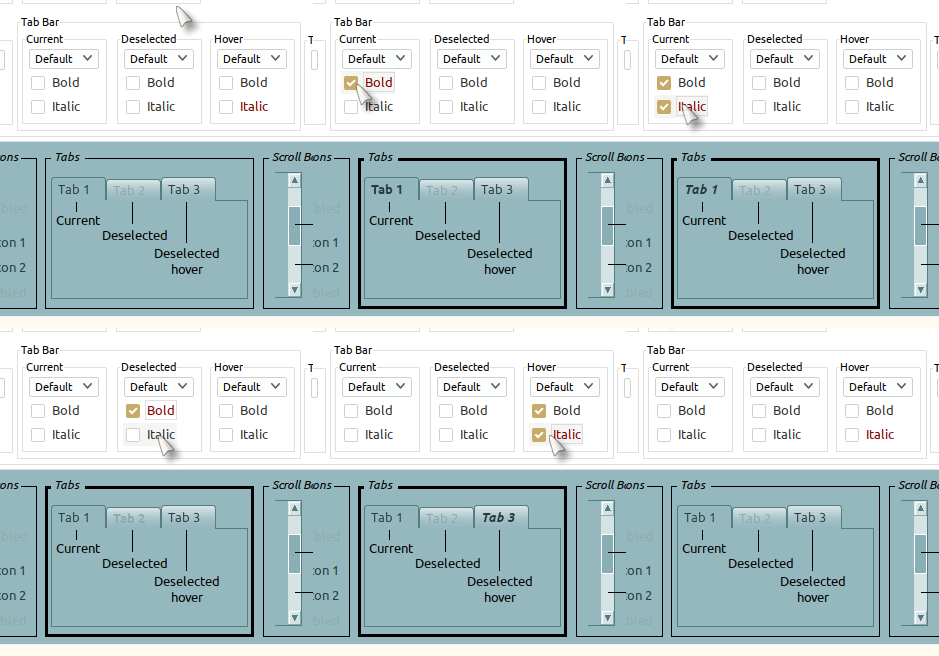
This gives you the ability to change the font height and turn on or off bold and italic styles to almost all the widgets in Qcad, either globally or selectively. Additional Font tabs have been added to accommodate this addition.
Note that some font heights are controlled by Qcad in Edit > Application Preferences. It is not possible to change these via a stylesheet.
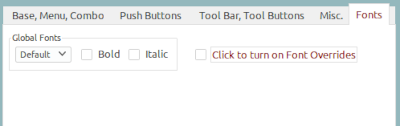
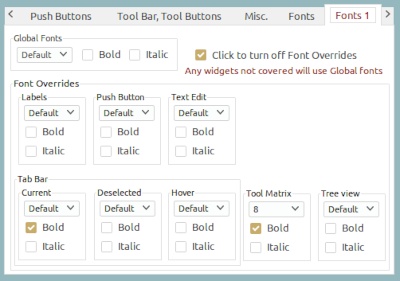
When you open a pre version 4.5 stylesheet, the Fonts tab is visible to the right (depending on your screen resolution, you may have to use the tab bar scroll buttons to display it) this is the Global Font section. Any changes to height, bold or italic will affect the fonts in Qcad globally.
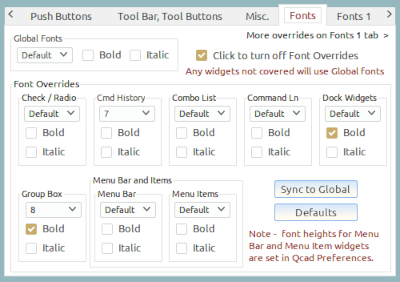
Checking the ‘Click to turn on Font Overrides’ check box will display eight areas of Qcad that will override the Global Font settings.
The ‘Sync to Global’ button will change all override settings to the current Global settings.
The ‘Defaults’ button will change all override settings to their default values, Height is Default and Bold/Italic are unchecked. Note that it’s not possible to change the font height for the Menu Bar and Menu Items area for the reason noted above.
An additional tab, ‘Fonts 1’ becomes visible when Font Overrides are turned on, this has a further eight areas in Qcad that can be changed overriding the Global Fonts settings.
Any Qcad widgets that are not covered by these overrides will inherit the Global Font settings.
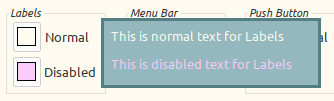
Any changes made to any Bold or Italic check boxes will be displayed in the matching preview area, as shown below. Not all Font Override areas have a matching preview area.
If you Save the stylesheet after turning off Font Overrides, you will not loose any changes you made to overrides until you Quit.
A stylesheet saved with overrides turned on can be opened and saved in Qcad Theme Lite without affecting the saved font override settings. The font overrides will still be displayed in Qcad after being saved with QTL.
.
Grey check and radio button icon colour has been added.
CHANGES
Global Font Overrides status has been added to the Stylesheet Information dialogue.
Font display in the Brightness and Hue sliders has been improved.
Four colour buttons and their associated text have been been re-aligned in the Base Colours area of the Base, Menu, Combo tab.
BUG FIXES
The Combo box font colour was not being written correctly
If a dark theme was using a white base text colour, the preview text would not be updated when the stylesheet was opened from the Open dialogue.
Version 4.6 is a significant update, it introduces many additions and changes, and a few bug fixes, all as listed below.
ADDITIONS
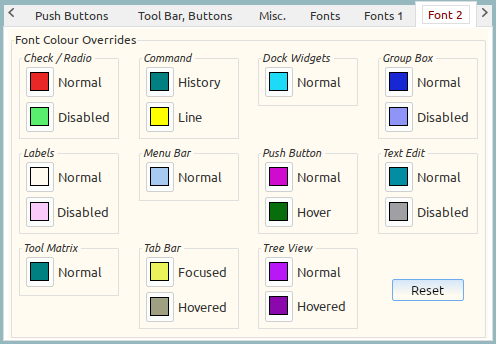
A Font 2 tab has been added which contains Font Colour Overrides. This allows you to change the font colour for most of Qcads widgets. These are not affected by the Luminance and Hue slider controls.
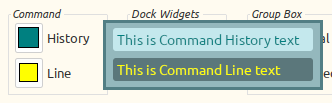
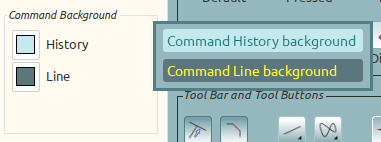
Two colour buttons have been added to the Misc tab. They are in a group box entitled ‘Command Background’ and control the background colour for the command history and command line widgets. The default colour is the main theme colour. These new buttons use the new popup preview as noted above.
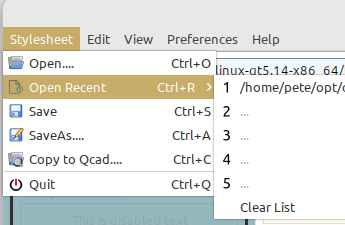
An Open Recent menu item has been added in the Stylesheet menu (was File menu). This lists the last five stylesheets opened in a submenu, there is also an option to clear the list.
Three Check and Radio icon colours have been added, Grape, Olive and Wheat.
.
You can now open a stylesheet.css file with QTD from the OS file explorer by right clicking on the stylesheet.css file and selecting ‘Open With’ from the popup menu. You will have to use the ‘Open Application’ in Linux or ‘Choose another application’ in Windows the first time you use this method.
.
an Undo and a Redo button have been added to the right of the Luminance/Hue sliders. A single click will Undo/Redo the last change, a double click will Undo/Redo all changes
CHANGES
The main Theme colour is now in it’s own group box, and it no longer generates an undo event when it’s colour is changed. Instead it generates a flag that lets QTD know that a change has occurred, and a dialogue to this effect will be displayed if you try to exit without saving the stylesheet.
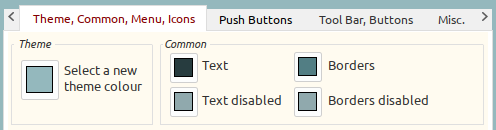
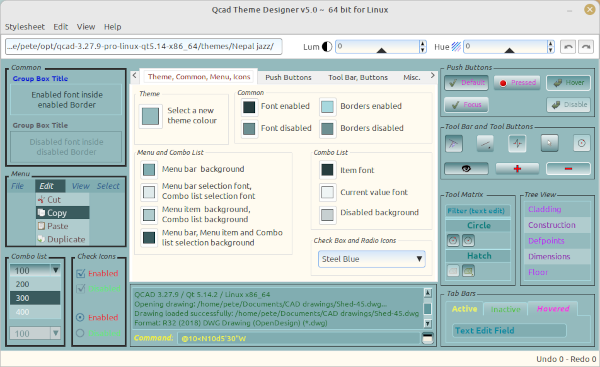
The Base Colours group box has been renamed Common (see above).
.
The File menu has been renamed Stylesheet.
.
The Brightness slider control has been renamed Luminance.
.
The Check and Radio Icons drop down list is now alphabetically sorted.
.
Colour and graphical improvements have been made to the check and radio icons.
.
The Luminance and Hue slider controls now change whatever the individual colour buttons are currently set at. Each change made equates to the Undo count increasing by one, irrespective of the number of colour buttons that were affected by the changed slider value.
.
Double clicking the Luminance and Hue slider controls to set to the saved value has been removed as it is now obsolete.
.
Improvements have been made to the loading speed of the folder browser.
.
Improvements have been made to the border colour when adjusting the background to a darker colour.
.
Graphical changes and improvements.
BUG FIXES
An error occurred when in the QTD folder browser if duplicate folders were found, this happens when OneDrive is used in Windows, but could also occur even without OneDrive installed. It could also happen in Linux.
.
An error could occur when selecting the menu item View > Load Configuration File.
.
In certain situations, selecting the View > Load Configuration File menu item or pressing F6 would not load the correct stylesheet.
.
Various Preview elements were not displaying the correct colour in certain situations.
Version 2.4 introduces changes, additions and bug fixes.
ADDITIONS
Three Check and Radio icon colours have been added, Grape, Olive and Wheat.
.
An Open Recent menu item has been added in the Stylesheet menu (was File menu). This lists the last five stylesheets opened in a submenu, there is also an option to clear the list.
.
Qcad Theme Lite is now aware of Qcad Theme Designer font overrides. When saving, a dialogue will be displayed with the options to either remove, keep the overrides or cancel. The Stylesheet Basic Information dialogue displays if font overrides exist. A message to the same effect is also displayed to the right of the status bar.
CHANGES
The Check and Radio Icons drop down list is now alphabetically sorted.
.
The File menu has been renamed Stylesheet.
.
The Brightness slider control has been renamed Luminance.
.
Colour and graphical improvements have been made to the check and radio icons.
.
Improvements have been made to the loading speed of the folder browser.
.
Display improvements have been made when adjusting the Luminance and Hue sliders.
.
Improvements have been made to the border colour when adjusting the background to a darker colour.
BUG FIXES
An error occurred when in the QTD folder browser if duplicate folders were found, this happens when OneDrive is used in Windows, but could also occur even without OneDrive installed. It could also happen in Linux.
.
If a stylesheet had been saved with Qcad Theme Designer with the base text colour set to white, and then opened with Qcad Theme Lite, the preview text would be displayed as black.
.
Various Preview elements were not displaying the correct colour in certain situations..
Big thanks to Husky for spotting the help file omission in Windows. As a result of that I’ve updated the help file to the latest version of QTD.
For Window 64 bit OS users copy the attached file to C:\Program Files (x86)\Qcad Theme Apps\Qcad Theme Designer
For Window 32 bit OS users copy the attached file to C:\Program Files\Qcad Theme Apps\Qcad Theme Designer
For Linux OS users copy the attached file to /home/User Name/Qcad Theme Apps/Qcad Theme Designer
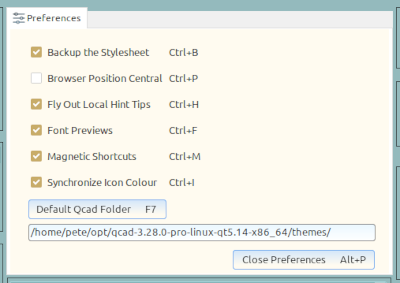
An option for local fly out hint tips has been added to Preferences. The default is off. The setting is saved to the configuration file.
A Synchronize Icon Colours option has also been added to Preferences. When enabled, the Menu and Browser icon colours synchronize with the Check Box and Radio Icons colour. The setting is saved to the configuration file.
Right clicking on any tab in Linux or Windows now displays a list of available tab names that when selected will make that tab active.
CHANGES
There have been many graphical user interface changes, this includes the preview area which has been simplified. The Command History and Command Line have been added to the preview area and are combined with a Label and Scroll Bar widget to emulate the display in Qcad.
The configuration file is now a structured format rather than random numbers and text. The file name is now qcadthemedesigner4.conf for Linux and qcadthemedesigner4.ini for Windows. The new name is to differentiate from previous versions of QTD.
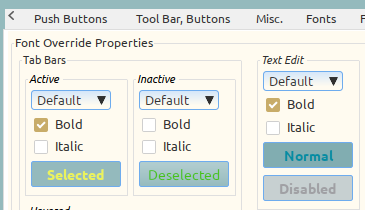
The Font Colour Overrides that were on the Fonts 2 tab are now combined with Font Size and Style Overrides. The main group box title is now named Font Override Properties.
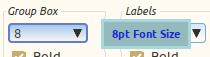
The pop-up font preview that was displayed in the Font Overrides tabs has been changed to display the actual font size.
In version 4.6, changing the Theme colour did not create an Undo event, it also reset the Undo/Redo buffer and reset the Luminance and Hue values to zero, as well as disabling Font Overrides, now all that happens is a single Undo event is created. The Theme button does not affect any Font Overrides font colours that may have been set.
The Preferences drop down menu has been removed. There is now a new Preferences menu item under the Edit menu. This opens a new tabbed page were all the preference options are displayed.
The colour Copy/Paste pop-up menu has been extended to work with the font colour buttons in Font Overrides. It has also been increased from 4 to 5 items, and has been changed graphically.
The Defaults button on the Fonts tab now includes all font colour overrides. Defaults now creates only one Undo event.
The Sync to Global button has been removed.
All of the Swap buttons, including Swap All, on the Push Buttons, Tool Bar, Buttons and Misc tabs now only create one undo event.
The Folder Browser hint tips now comply to the Fly Out Local Hint Tips setting on the Preference tab.
Focused and Deselected tabs are now named Active and Inactive.
The Font colour button in Misc/Deselected/Hovered tabs has been removed as it was conflicting with Font Overrides. By default the tab font colour will be the same as the Common/Font colour.
The Gradient bottom colour button in Misc/Deselected/Hovered tabs has been removed.
The Shortcut dialogue now stays on top of the QTD app window.
FIXED BUGS
Disabled background and Current value text colour buttons inverted. This somehow got switched in version 4.6.
Tab Bar Deselected and Hovered font colours were not displaying correctly in the preview.
Memory leaks in Windows fixed.
If the shortcuts dialogue was moved, the new position was not being written to the configuration file.
In version 4.6, if the Check/Radio icons colour was changed and then any Swap button was clicked the Undo would not have functioned for the Swap event.
The scroll bar button up/down arrow colour in Preview was not displaying correctly.
Windows x32 downloaded 146 times
Linux x64 downloaded 147 times
Linux x32 downloaded 140 times