Qcad Theme Designer update, version 6.0
Version 6.0 has some significant additions and changes, plus a few bug fixes.
Since version 5.3 Qcad Theme Designer (QTD) has been fully portable, all files are contained within one folder. There are only two downloads to choose from, Linux and Windows, each are in their own zipped folder.
Download the relevant zip file for your OS and extract the folder to any writable location.
For a number of years 32 bit support for mainstream Ubuntu/Linux based distros is no longer supported, with that in mind, there is now only a 64 bit executable for the Linux version of QTD. Please check that the execute permission is set for this executable after unzipping the files. The Windows executable is still a 32 bit version so will run in 64 and 32 bit versions of Windows.
You can create a desktop launcher/shortcut from within QTD using the ‘Edit>Create a desktop launcher/shortcut’ menu item.
ADDITIONS
-
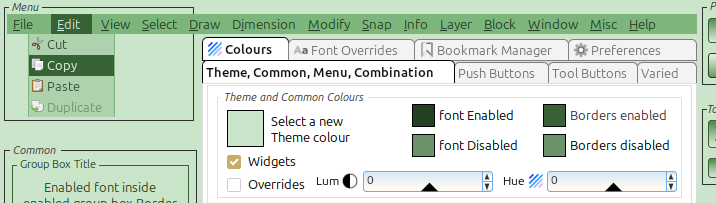
A Widgets checkbox option has been added under the Theme colour button. When checked all widget background colours are modified by a Theme colour change (as in previous versions), when unchecked only the Theme colour itself is modified. Thanks to John Hyslop for this suggestion. Refer to the image below.
-
An Overrides checkbox option has also been added under the Theme colour button. When checked all Override font colours are modified by a Theme colour change, when unchecked the Override font colours are unaffected. This check box will be disabled when Font Overrides are disabled. Refer to the image below.
-
The Push Button area in the Font Override Properties 2 tab now supports font colour change for Pressed and Focused state, plus the Disabled state button that was originally in the Push Buttons tab Disabled group.
CHANGES
-
The tabbed edit area has been redesigned using embedded tabs for the Colours and Font Overrides tabs. This makes tab navigation much easier, particularly when Font Overrides are enabled, any tab is now just a click away, including Bookmark Manager and Preferences. Refer to the images below.


-
To support the above change there is now a pair of radio buttons in the Preferences tab to swap between Buttons and System tabs, Buttons is the default.
-
When QTD is first installed, or if the Qcad path is missing in the configuration file, or the Qcad path cannot be found, QTD will search for the first Qcad installation folder that can be found that has a valid executable in it. You can change this folder to another Qcad installation folder by clicking the Qcad or Qcad/Cam Installation Folder field in the Preferences tab.
-
The Qcad menu bar representation is now full width, to implement this I had to swap the Menu and Common Preview group boxes. Refer to the image below.
-
The Luminance and Hue controls have been moved from the top toolbar area into the Theme and Common Colours group box. Refer to the image below.
In the Push Buttons tab Disabled group, the Font colour button has been moved into the the Font Override Properties 2 tab.
-
When using the File>Preview in Qcad menu option, a ‘Loading Qcad’ dialogue box is now displayed, prior to Qcad fully loading, this will change to the original ‘Close Qcad to return to Qcad Theme Designer’ dialogue box.
-
The current Qcad install path has been added to the Theme Information dialogue box.
-
When creating a desktop launcher/shortcut using the ‘Edit>Create a desktop launcher/shortcut’ menu item, if a launcher/shortcut already exists you are now asked if you want to delete it.
-
Some hints have been expanded.
-
Some icons have been improved.
-
The code has been optimised.
FIXED BUGS
-
Preferences > Fly-Out Local Hint Tips, was not working.
-
Under certain situations when critical QTD folders and/or files were missing, it was possible that you would not be able to exit QTD.
-
In Font Overrides if you change the Bold or Italic check state in Menu Bar and Items, then click Undo, the Font Preview window would be displayed, similarly when Redo was clicked.
-
With a theme loaded that had Font Overrides disabled, if you enabled fFont Overrides , then changed any Font Override font colour, then pressed Undo, the relative font elements in the preview area did not get updated.
-
If Font Overrides are active and the Global Font height is Default, if the Global height is changed to a numeric height a red warning note is displayed but is partially hidden by the Font Override Properties group box. The red note should not be displaying.
-
If you changed the Global Font height in Global Font Properties, then change either the Global Font Bold or Italic state, then click Undo twice, then click Redo twice, an unrecoverable error occurred.
-
After changing the Global Font height, pressing Undo/Redo repeatedly would cause QTD to lock up.
-
It’s possible that in Windows the menu item Edit > Create a desktop shortcut was not creating the shortcut correctly as the icon was not displaying.
Qcad Theme Designer 6.0 - Linux.zip (3.5 MB)
And lastly, I cannot thank forum member John Hyslop enough for all the endless testing he undertook to get this version to where it is, it’s simply not possible to test your own software sufficiently, especially when it’s become fairly complex as QTD has.
Many thanks John, the checks in the post!