When I import my jpg image into QCad to make them into SVG or DXF I trace around the image and it jumps to places where I don’t want it. How do I get rid of this annoying snap process. I have tried various methods but it looks as nothing works very well. Do I have to reset this every time I open QCad. I find it very annoying in what looks like the ideal tool for doing what I need to convert JPG to DXF or SVG and the reason I purchased QCad Professional.
doncraig
Hi,
That should be as easy as explained before.
Snapping is a fundamental concept when drawing in CAD.
You are navigating on the canvas with the cursor and that is pixel-based on screen pixels.
It won’t be possible to indicate any position with a reasonable accuracy.
Panning and/or zooming in/out changes the real world meaning of a pixel and/or its accuracy.
Per example:
The end of a Line starting at (0.0, 0.0), 100 units long, angled 20 degrees is at (93.969262078590929… , 34.202014332566967…)
Depending the zoom state this line may be displayed as a few pixels or extends far beyond the screen limits.
Pixel-based you can not indicate the end position exactly.
Snapping to an ending of a line entity does that with the highest achievable accuracy possible.
By default QCAD is in Auto Snap mode.
Snapping to: Intersections, End points, Middle points, Center points and so on … The nearest in that order.
Yes, it has the tendency to revert to the Auto Snap mode for obvious reasons.
Snapping to most common points of entities, the Grid or not at all when pointing in the void.
Many things can be configured for the QCAD application under the Application Preferences.
That includes what points QCAD is snapping to in Auto Snap mode.
→ Click on the entry ‘Edit’ of the menu bar.
→ At the bottom click on ‘Application Preferences’.
→ A dialog opens listing all preferences that can be configured in this way.
→ In the left column scroll down to ‘Snap’.
→ Click on ‘Auto Snap’.
→ Click on the box in front of ‘Grid Points’ to toggle this to Off.
→ Acknowledge the dialog with OK.
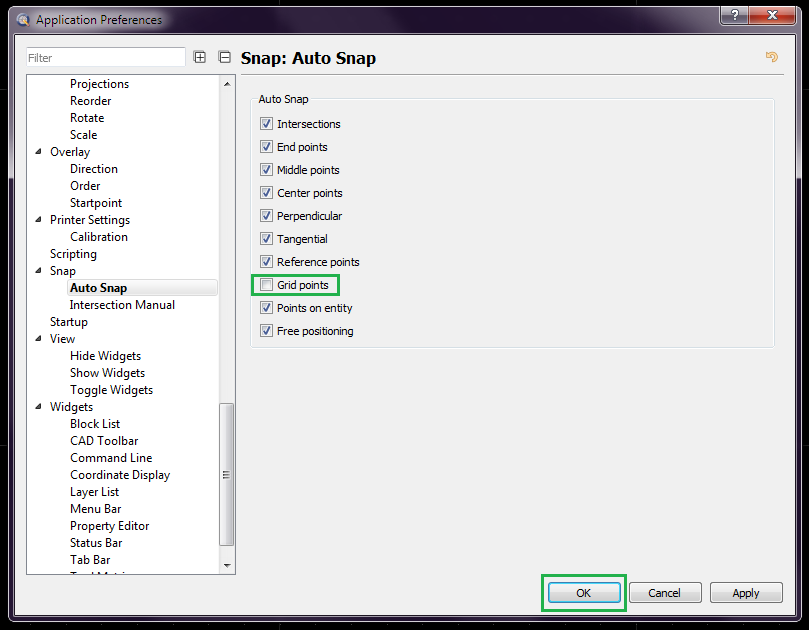
This should turn snapping to the Grid off for auto snapping.
At the same time you can also configure the preferences for other auto snap options.
Application preferences are stored persistently in the QCAD config file.
These are loaded back on starting QCAD.
Regards,
CVH
Thanks for that explanation CVH. I carried out the advice you gave, I found a problem when I went to Save OK because the screen toolbar covered the boxes in the bottom of the screen. I got rid of the toolbar and saved, closed the programme and then re-started. I opened a jpg and did what I wanted and I am now a very happy bunny, it worked perfectly. I will be back tomorrow with my next problem that I think may be more of a laserGRBL problem. We will see. Thanks again for the great advice, it is great knowing I can open QCad and do what I want.
doncraig
Hi,
QCAD has no Toolbar called ‘Screen’. e_confused
On Windows there is for example the Taskbar at the bottom.
If something hides the lower part of the App.Prefs. dialog then I suspect you don’t see the Status Bar either.
Typically at the bottom of the QCAD GUI.
Visibility can be toggled with menu View .. Status Bar (GS)
GS is the shortcut key sequence. Simply hit the ‘G’ key, release and hit the ‘S’ key shortly after that.
Try maximizing the QCAD application window.
Typically top-right for any application.
Regards,
CVH
It is the windows taskbar at the bottom of the screen. I have removed it and it only shows when you hover over it.
Thanks again.
doncraig