I am running QCAD Version: 3.24.3.0 in Windows 10 to produce drawings for a house extension. I have generated a number of plans, sections and details to various scales, each as a layout block in paper space. Whilst in paper space, I have added drawing frames, titles and text notes with leader lines. These leader lines are intended to have arrow heads and I have applied a scale factor to them to make the arrows look right in paper space. The problem is that when I save and close the drawing all the leader arrow heads disappear. I got used to putting text notes in paper space when I first used AutoCad several years ago but it looks as though I need to put all text notes and their leaders in model space. Is this the case?
Leader arrows are removed if the arrow size is smaller than half the length of the first leader segment that is hosting the leader. This is a DXF/DWG format restriction.
If you can attach your drawing file with at least one such leader in it, we can help more efficiently, thanks.
Same here:
My arrowhead fitted at least twice!
Dismissed as expected behavior.
CVH
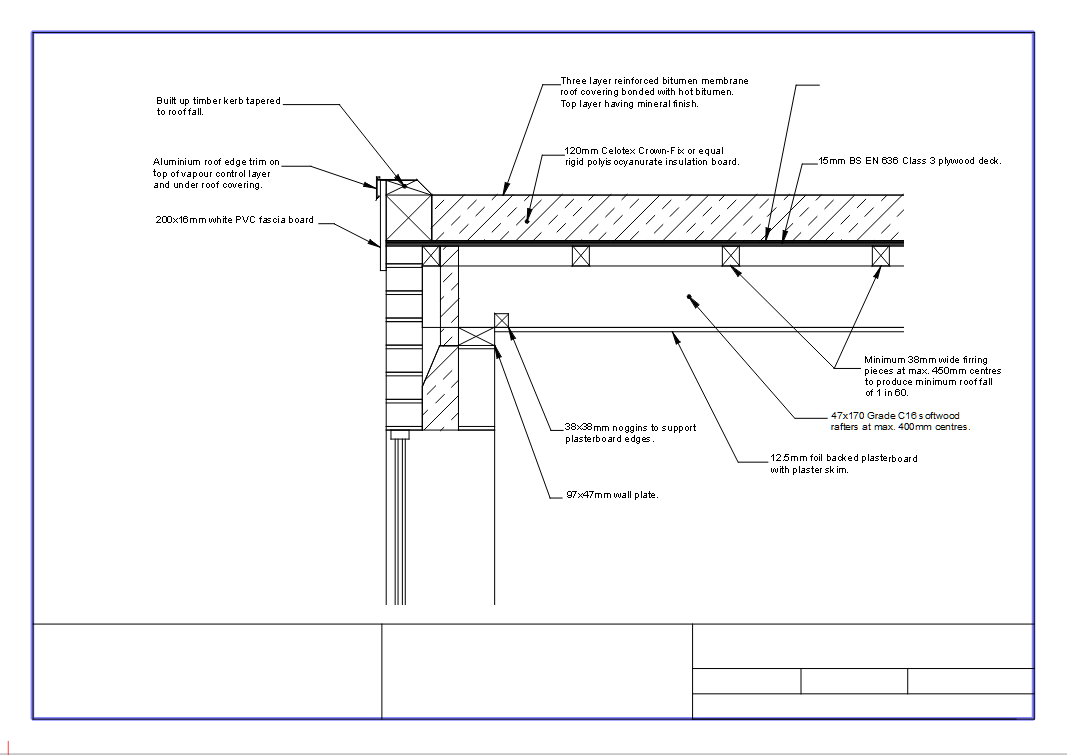
I’m not sure that I fully understand your reply about the arrow size Andrew but I attach a stripped down version of the drawing in question. It is set to the layer state for “sections” and the “roof detail” block has a number of leaders attached to notes. These leaders should have arrow heads.
Leader_problem.DWG (141 KB)
Same problem …
The Leader entity (similar as all the dimension types) has a Specific Scale Property.
This is set to 0.1 for a proper arrow size.
I have no problem with that. 
I’ll vote for this feature.
One can set them but that is reset on save/open.
In the mentioned topic, Husky replied that this is not the correct method/usage.
Instead the global setting for dimensions should be used.
What would be very troublesome in your case.

Regards
CVH
Hi,
BTW:
A golden rule with hatches is to keep the hatch origin near your hatch.
GRAVEL is a quite demanding hatch.
‘Slower’ Section A-A, Section B-B & Wall Detail Paper Layout rendering.
It is used 36,000 and 64,000 units away from its origin.
Bad coherency.
GRAVEL2 might be somewhat better.
Setting the hatch origin near would be best practice.
Regards,
CVH
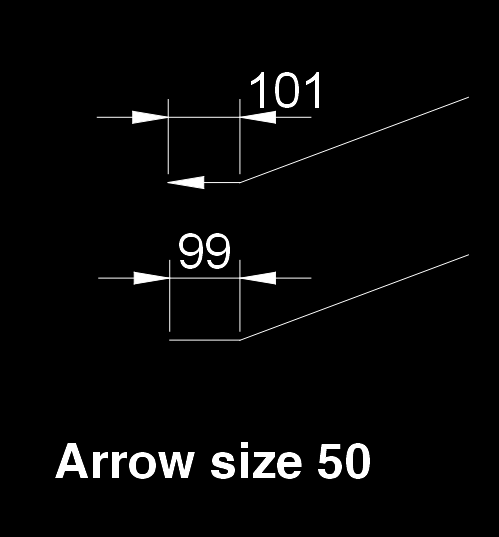
Yes, that’s what I am trying to achieve but what exactly did you do in settings?
Change the Arrow size to a practical size like 3.5 instead of 50.
Menu / Edit / Drawing Preferences / Dimension Settings
Next: Block List, select “Roof Detail”, launch “Edit content of selected block”,
use the “Selection Filter” to search and select (Icon “Replace the current selection”) all “Leader” in this Paper_Space,
switch to “Property Editor”,
below “Specific Properties” change the Scale to 0 and change “Arrow” to Yes.
That should fix the issue … e_confused
Same solution …
Avoid the use of the specific property Dimension Scale for Leaders.
let us asume that Scale=0 is ‘no Scale’. What is mathematically scale 1.0000…
Choose the drawing dimension size to fit your smallest Leader arrows.
Apply larger specific scales to dimensions if those need to be larger as Leaders
That’s how I do it since Jan 2020.
In short: Don’t scale down, but scale up!
What Husky left out is that 28 dimensions in your drawing need to be updated too.
All dimensions are bound by the global drawing dimension settings.
That’s why there is the Scale property (… except for Leaders)
Cheers,
CVH
Thank you all for your help. I know what to do now.
Posted a feature request.
Picked up as bug and fixed. 
Thanks Andrew.
Regards
CVH