Is it possible to draw the dimensions in a layout rather than in the model? Then I could reuse the same geometry for different sets of dimensions at different scale. It would also make it easier to reuse the same geometri at different scales in different drawings. So far I have not been able to “snap” to lines in the model when I draw in the layout.
I am running QCAD Professional 3.19.2.0 on a Windows 10 PC.
Yes, that is possible.
The Layout is snapable like the Model_Space. If it doesn’t works in your case then you should check the parameter which are controlling the snap ability in your drawing.
Something like this …?

What Husky is showing is exactly what I would like to do, but I don’t find the settings to make the snap tools “see” the lines drawn in model space, they only “see” stuff drawn in the layout (border and header).
Ok, then we have to isolate the issue … 
Question: Are those Viewports on a dedicated layer? If yes is snappable activated within the attributes for that layer?
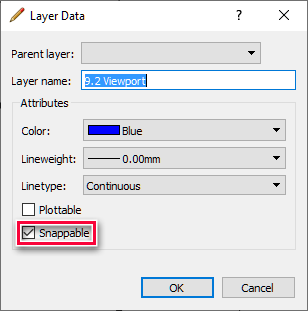
Additional: The layer is not locked or frozen, right?
Would it be possible for you to attache your drawing to this topic?
One is able to snap to locked layers …
Frozen or hidden(On/Off) layers aren’t visible to snap to as in your Gif …
Still, not all snappers are there.
See: [SOLVED] Snapping in a Layout ... 2 - QCAD 'How Do I' Questions - QCAD Forum
Regards,
CVH
Correct - if your goal is only to snap and NOT to finish the transaction … then you are right!
Untrue in the context of my previous answer. I recommend to read and understand a post before you claim something what is completely wrong!
Great - thanks!
I do use a separate layer for my viewports and that was not ticked as snappable. Ticking that makes the trick!
However, the dimensions then pop out in paper scale, I would like the text height and line dimensions to follow the paper scale, but the dimension numbers should follow the model. I can change the scale in the properties of each dimension, but I guess there is a general setting for that?
I have attached the drawing as well:
SvängdTrappa.dxf (291 KB)
The general setting is below Drawing Preferences / Dimension. The rest would be based on general logic …
Please note:
Common praxis is to keep the paper scale for a Paper_Space print 1:1. Scale only the viewports. If you like to have the dimension text printed at a hight of 3.5 put 3.5 into Drawing Preferences / Dimension settings.
This said …
- Dimensions in Model_Space are always affected by a paper scale and / or a Viewport scale,
- Avoid mixing dims in Model_Space and Paper_Space via Viewports with a scale other than 1:1 - yes, it is basically possible but a recipe for headaches …
- If you like to use dims in Paper_Space use the Scale Auto option in the option bar to catch the proper scale of that Viewport.
- If you need individual sizes for the dim select afterward the dim and use the scale option in the Property Editor. Multiple selection will work too …
Thanks a lot for the help! I am trying to convert myslef from AutoCAD to QCAD and most things are fine, but scaling and dimensions have been hard for me to get a grip of. The mix in the attached drawing is just because that is the drawing I am doing right now and I had started to do the dimensions in model space, but I am now changing to paper space. I am building the stair at the same time, so I am jumping back and fourth between the workshop and the drawing…
Is this the option you refer to?
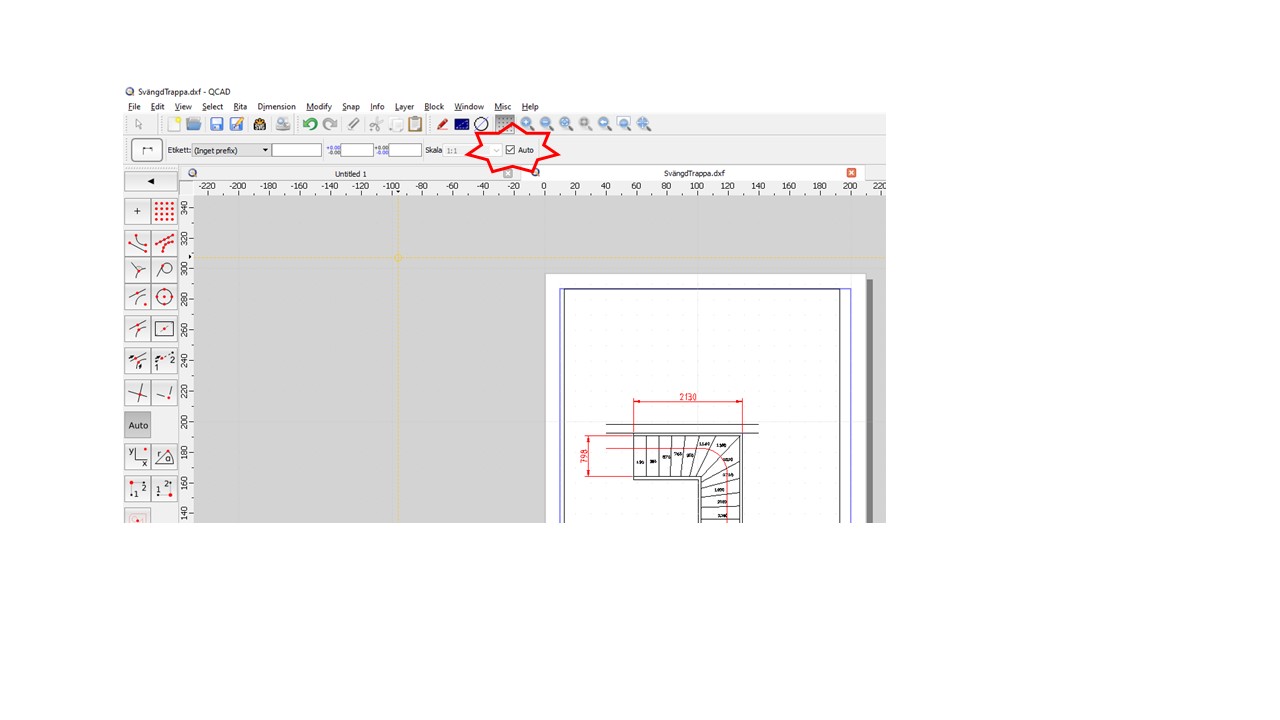
Even with that ticked I get the dimension in “paper-mm” and I have to set the linear factor to one over the Viewport scale for each dimension to get the numbers rights.
Yes, that looks correct!
That is because you pushed QCAD over the edge. Or was it a test for me …? 
If that happens with this Viewport …
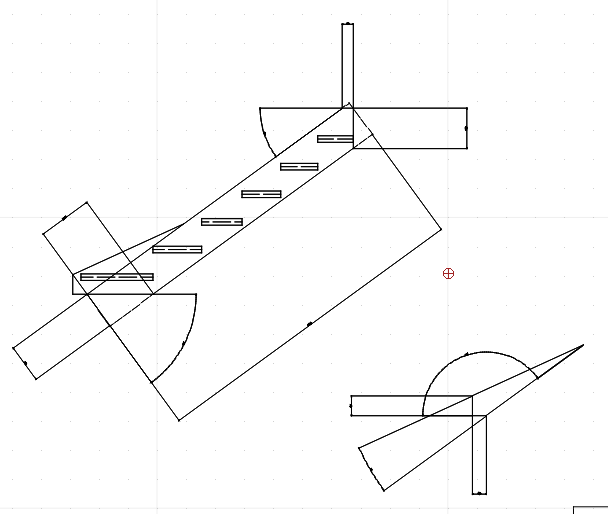
… then it is caused because two Viewports are placed on each other. Delete the empty one and Dimension with the Auto option on should work as expected.
Hi again,
Maybe I have pushed QCAD too far then 
It was not in that layout, here is a new trial:
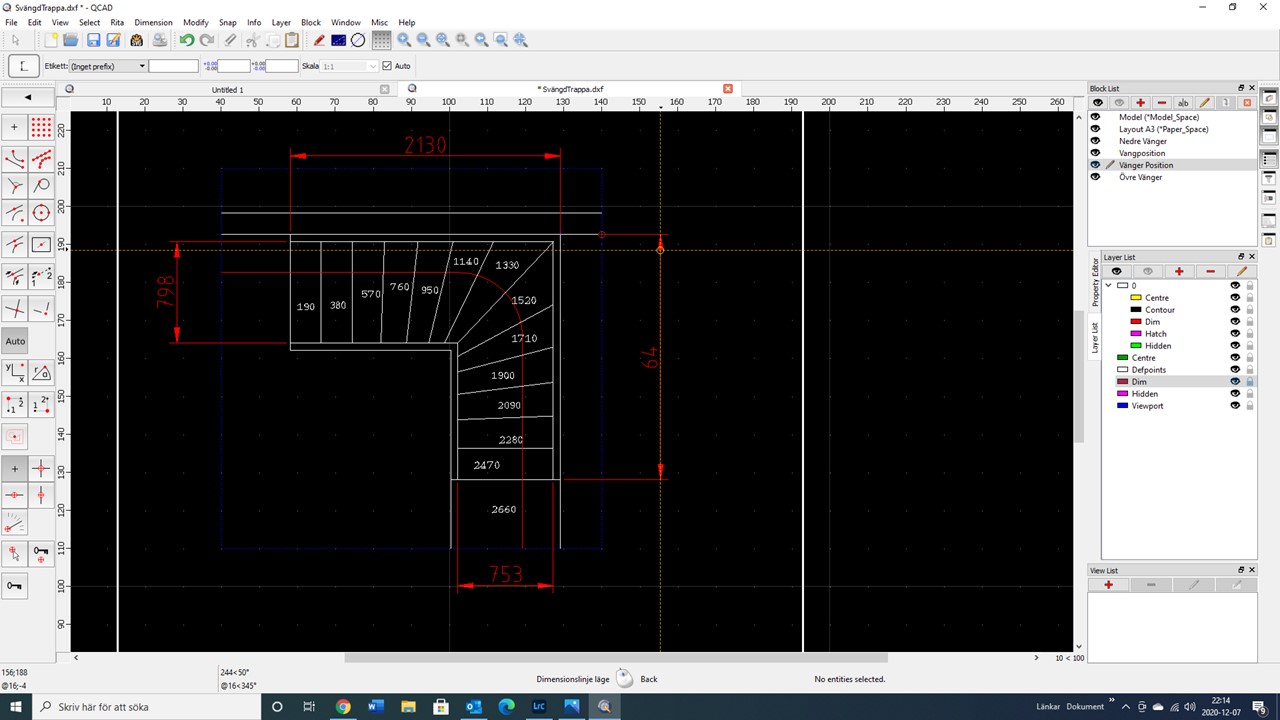
The picture is taken when I am just about to finish the 64-dimension (that should be 1930). I only have one Viewport in this layout. If you want to have a look in the drawing again, it is here:
SvängdTrappa.dxf (297 KB)
Regards,
Jan-Ola
This viewport is placed in a regular standard block - NOT a layout block. That will not work …
A Viewport belongs on a Layout Block (Paper_Space). To create an additional Layout Block launch it below Menu / Block / Add Layout Block.
Then take a Viewport from the Model_Space and place it on that Layout Block …
That’s right, that’s a mistake that I obviously made already in my template. I have a template with an A4 border in a standard block and an A3 border in a layout block. I need to fix that!
Then it works! Thanks for the help!