Hello.
I’m converting my PNG using -r 30 and if I undestood weel, this means for any drawning units on the Model, I will have 30 pixels for that, right?
So, theoretically if I have a coordinate on DWG (350, 208), what will be this coordinates on PNG? Is it not simple multiply for 30, right? Because It isn’t matching, because my result image file don’t have pixels enough to be find on 10500(350 * 30), 6240(208*30) pixels.
We want to convert a DWG file to PNG with a “Scale” (I think -r do that), get a coordinate on DWG file (example 350,208) and find the same reference of this coordinate on PNG file using this “scale”.
Like, I multiply the DWG coordinates and find the same place on PNG in pixels.
This is possible? Negative coordinates is a problem? Any ideia to resolve that feature?
I can’t put our real DWG file because is a secret file but I think It work’s on all DWG files.
We are running on trial version for now just to test the tool.
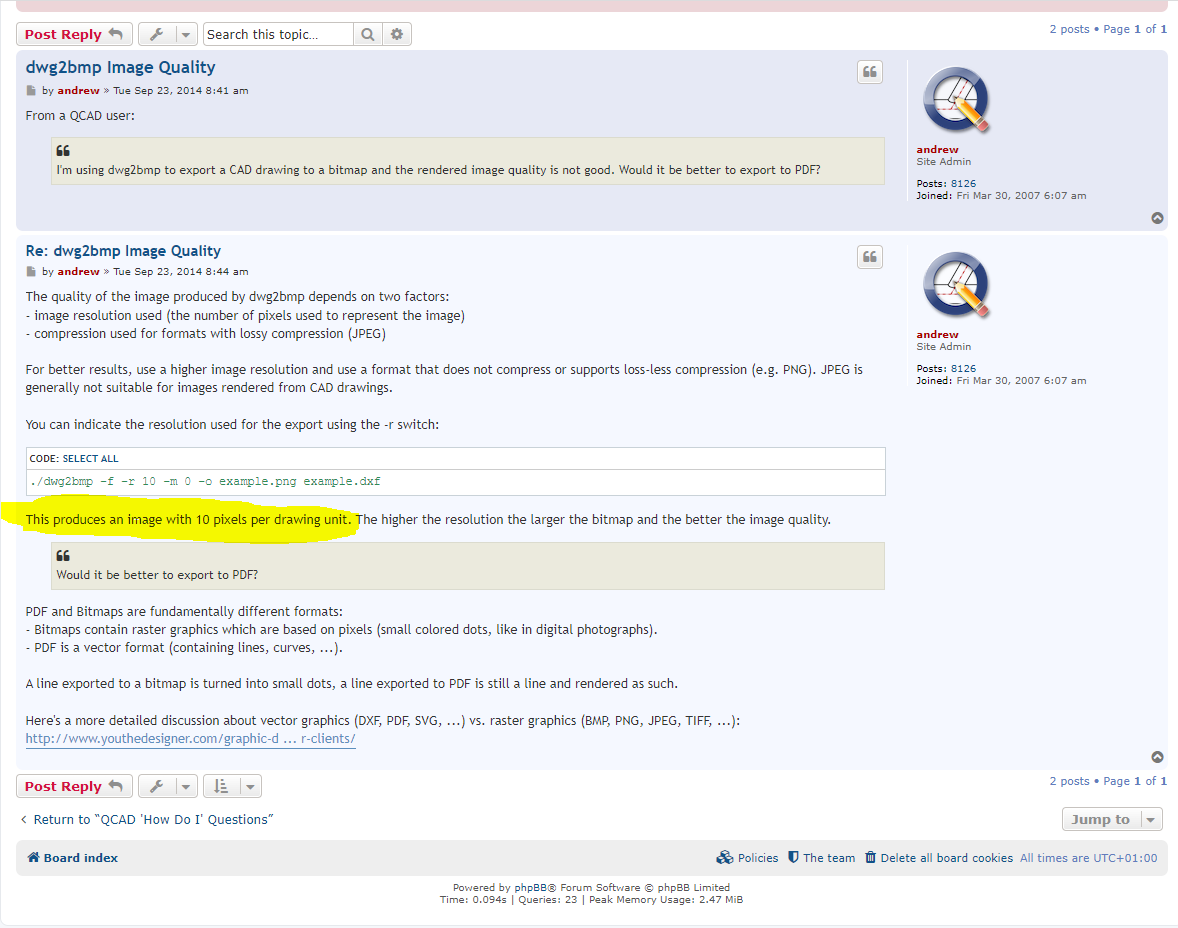
Reading Andrew’s reply in: dwg2bmp Image Quality -r 10 sets the pixels per drawing unit.
If the drawing is in mm you get 10 pixels per mm or 254dpi, for drawings in inches that is 10dpi
An export of a 100 by 100 inch drawing will be 1000 by 1000 pixels.
(Or better 1001 because it should include the left and the lower side too )
There is no magic in that.
The origin of bitmaps is usually left high.
An export (XD) under the QCAD GUI can include a margin in the bitmap.
What you don’t mention is where the origin of your export is relative to your drawing origin.
Only then we could corelate pixels to coordinate or back.
Negative coordinates will not be a problem, it is all in the maths. e_geek
I think you need to include -w, -window=X,Y,W,H to have a defined window for export.
I’m doing a software which will be able to convert a DWG file (I don’t know the draw unit but I have the objects coordinates from CSV) to PNG. I will need to get the objects coordinates in pixels on PNG file using the objects coordinates from DWG file.
I was using “dwg2bmp.bat -a -b white -m 0 -f -n -o myfile.png -platform offscreen -q 100 -zoom-all -x 7920 -y 4960 myfile.dwg” but I wasn’t defining a scale for the image and to the software be able to get the object on PNG I was calculating a ratio using two different points.
I tried to use “dwg2bmp.bat -a -b white -m 0 -f -n -r 20 -u in -o myfile.png -platform offscreen -q 100 myfile.dwg” but It didn’t work like I thought. I was multiplying my DWG coordinate values by 20.
I didn’t understand well about this “What you don’t mention is where the origin of your export is relative to your drawing origin.
Only then we could corelate pixels to coordinate or back.”. Do I need to fix a value for -w and -h on my png result?
I don’t know more what can I do, I really appreciate your help.
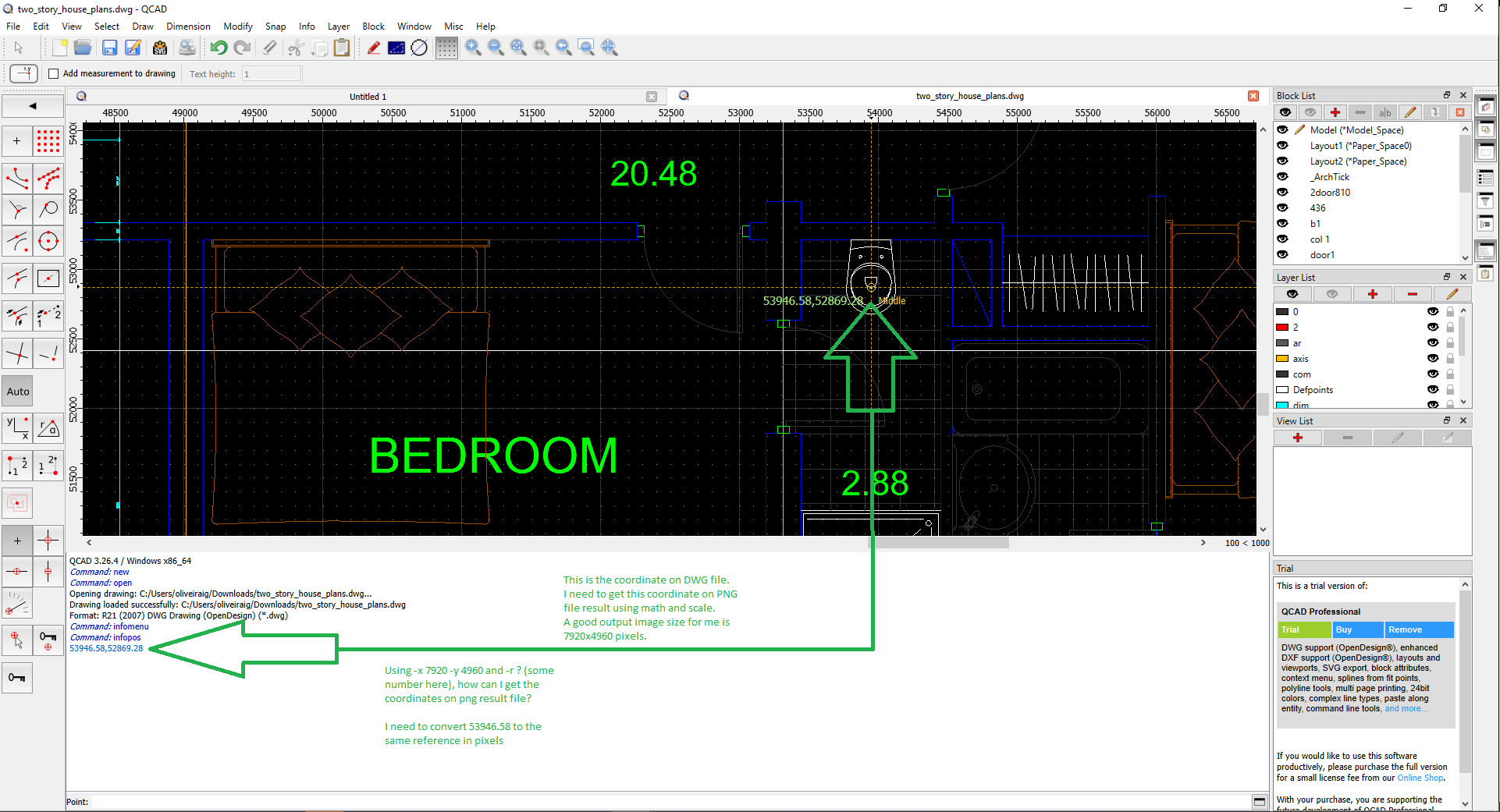
I will put an example here with a free DWG file which I downloaded to use here like an example. The PNG result needs to have a good quality, Could you please share your idea to get the coordinates on PNG from this attached DWG file without having to open the image manually to get the pixels?
First: I can see that you use a trial version.
For now I will regard this as a ‘QCAD Professional Version’ Topic
Second:
A good output image size for me is 7920x4960
An output of what? Of Level2 or of whole the drawing? -zoom-all -x 7920 -y 4960 would match whole the drawing.
One can’t mix -r with -x, -y!
A Bounding box around everything would be 56736.37 by 41544.50 units (mm).
In height you get 41544.50units for 4960px or 8.3759units/px.
The inverse is 0.11939pixels/unit.
That would be about 6774px wide and that will fit the 7920px.
The lower left corner of the bounding box is @(6677.81;41629.43)
The upper edge is at Y = 41629.43 + 41544.50 = 83173.93
Coordinate (53946.58;52869.28) would match:
(53946.58 - 6677.81)/8.3759 = 5643.426 or pixel #5644 from the left.
(83173.93 - 52869.28)/8.3759 = 3618.077 or pixel #3619 from the top.
The maths are as easy as pie.
As are the reverse maths:
Pixel(5644,3619) = @(53951.45;52861.51) … All within 1px = 8.3759units
 )
)