“Move / Copy” dialog improvement

I am using the “Move / Copy” (MV) command quite a lot and I am a little bit annoyed that it requires so many clicks and has no keyboard shortcuts to select the correct radio button (at least on Mac).

What I suggest:

  • Replace the radio buttons by simple buttons that trigger the action in one click or one keyboard shortcut.
  • Remove the OK button.
  • The last button used should be selected the next time so that the Enter key activates it.

I have been thinking it would be great if move and copy were their own commands so it eliminates the dialog box for move and for copy you would only need to specify if you wanted more than one copy. Perhaps move would stay (MV) and (CP) would be repurposed as the command for the copy option rather than just the copy to the clipboard function it currently serves? Perhaps instead of a dialog box, there would be a field in the options toolbar to specify a number of copies other than 1 if desired. I’m just thinking out loud about all of this. :smiley:

If you want to move something without the dialog box, you can just hold down with the mouse momentarily on an object and that will automatically invoke the move tool. You can also use Cut with Reference (RT), or Copy with Reference (RC), and then Paste (PS), but for whatever reason I never gravitate to those options and prefer the move/copy procedure.

You can use ⌘D, ⌘K and ⌘M to switch between the radio buttons.

I also tend to use the dialog free Edit > Cut with Reference or Copy with Reference and Paste rather than Move / Copy unless I need multiple copies.

Andrew, is this relatively new feature? I remember a thread from a little while back Dialog Box Hotkey - #6 by ryancousins that kind of touched on this but I didn’t know you could use these shortcuts on a mac. Cool. :sunglasses:

How does dragging with the mouse or moving with arrow keys work for you? Most of the time I try to move with the mouse but that can be tricky. I would like to see it more stable with a shortcut like CTRL + mouse to take the try and error attempts out of the task. I’m sure my issue is just a fine motoric issue with the mouse but it sucks … e_surprised

BTW: If I need a single copy “Duplicate” and Mouse / or Arrow keys works like a charm …

I typically only drag to move with the mouse when the placement may not really matter like a text label or note in some cases. Or if I just want to temporarily move something out of the way I suppose. I’m more used to using MV and then choosing my reference point based on my situation. I have never used the arrows. Moving by dragging could be difficult if the pre-existing reference point isn’t where is most conducive to precisely align the thing you’re moving to its new location. I’m not sure if that is what you feel makes it tricky.

BTW: If I need a single copy “Duplicate” and Mouse / or Arrow keys works like a charm …

That’s a good trick. I use duplicate in drawing apps like Inkscape or Google Draw constantly so I should try that in QCAD.

Well, I never thought that my request would get so much attention! Thank you all for your answers.


@ryancousins

I like the fact that there is only one command to copy and move. On AutoCAD I wasted a lot of time with the wrong command (copy instead of move or move instead of copy).

I’m not a big fan of the copy and cut command in the edit menu because the process of moving is split into 2 steps: first you have to copy or cut and then paste. I prefer the way the MV command works. The only thing I don’t like about it is the last dialog which takes too long to click.

Hover on an object works on a single object or on objects that totally overlap but not on separated objects. So that’s not really usable for me.


@andrew

⌘D, ⌘K and ⌘M don’t work for me on QCAD 3.26.2, macOS Big Sur 11.3. Will it be available in a future release?
I tried it on Ubuntu and it works with alt-s, alt-g and alt-m. It depends on the language, here it is in French (s = supprimer, g = garder, m = multiple)


@Husky

Dragging with the mouse doesn’t work well as in QCAD it is not possible to drag multiple objects unless they overlap. And anyway, as it is CAD drawing I need precise reference and end position so dragging alone do not seem feasible (unless I am missing something).

Moving with arrow keys is OK but still I don’t understand how to move precisely from a reference point to an end point. It is also not very convenient for long distances.


My question is about the number of clicks needed in the MV dialog. Is it possible to rethink the design? I really think that the radio buttons could be replaced by standard buttons (with keyboard shortcuts assigned). That would be already a big improvement.

Actually you are able to drag multiple objects, even without overlapping … :wink:

I agree. But, depending on where you click the selection the reference will jump to the closest “basic reference” like end, center etc etc..

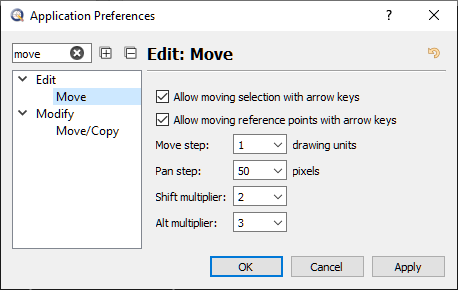
It’s a different strategy. One arrow key stroke moves the selection a certain amount of units. How many units are used can be controlled by you within the Application Preferences.

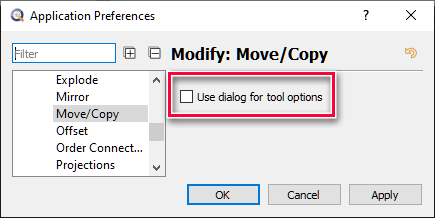
Now you lost me! How will you simplify or improve this simple setup …

Husky-2021.05.14-03.png
… or could it be that you never tried the “Non dialog” tool option? e_surprised


… I need a coffee!

Mind blown! I totally forgot about that setting. It seems no matter how long I poke around in the applications preferences I eventually forget about some of the settings in there. I like the no dialog box option. :smiley:

All,

I have/had the same problems with MV.
Have read the recurring comments from users on MV.
Have used it without dialog, what only doesn’t requires the OK click.
There are pros and there are cons … Two prejudices … Two camps …
One can’t have it both ways.

Still, for myself, in about 25% of the cases that I need to move or copy things from a well known reference to another …
… the ‘wrong’ method is executed as the one intended.
Simply because I assumed that my previous use was ‘Move’ or that it was ‘Copy’ without verifying.
This happens more if one swaps a lot between methods.

I was used to having it as 3 separate instructions …
… Old habits don’t go away that easy. :wink:

I said: ‘.. have/had ..’
Knowing a little about scripting … I made ‘Move’ persistent and I use MV without dialog.
Now MV is always ‘Move’ unless I choose to ‘Copy’ or ‘Copy multiple’.

Regards,
CVH

… or could it be that you never tried the “Non dialog” tool option? > e_surprised >

No, I didn’t know this option exists. I tried it and without the dialog, MV suppresses the original (“move” behavior). I wonder why the three options (move, copy, copy-multi) do not appear on top left toolbar as it is the case for the LG function for example. It would be an excellent solution to choose the behavior at the beginning of the MV process. It would mean less clicks most of the time.

Hi,

The major difference would be that LG doesn’t require a selection.
Beside that:

On the toolbar it is not tri-state like LG …
It is OR ‘Move’ OR ‘Copy’ => 1 Toolbar button.
When it is ‘Copy’ it is N times => 1 Toolbar RmathLineEdit field.

The dialog is a bit different:
There it is indeed tri-state => 3x auto exclusive radio buttons. (Rather common)
Copy = 1 time (Additional option)
Copy multiple = N times => RmathLineEdit field.

Objectively count the number of clicks when comparing and/or proposing a feature.
Average that out with how many times that users would use the methods.

I move a lot, an other user may copy a lot. :wink:

In any way, one can always file a feature request here:
Flyspray::QCAD Bugtracker: Tasklist :sunglasses:

Regards,
CVH

Move is technically copy with deleting previous position. But having 1 command is mentally taxing. I need to check if copy is selected. So I need to look. If I dont I end up with copying when I want to move and vice versa. In every case Im slower than with 2 separate commands. Move is arguably the most used command in CAD. Every millisecond counts.

My intuition is to have move without copy; copy command that puts a copy with every click (no dialog) and array that is copy with set amount of copies (with dialog). But maybe I`m just an Autocad dinosaur. :slight_smile:

I reckon move can stay with copy function for compatibility sake. I`d like to have separate copy command. Sure, copy with reference point works, but requires a paste command. Remember - cognitive load. Milliseconds. B)

Having a button to enable/disable dialog box for move, copy, rotate and scale in options toolbar would be nice.
Also I`d much appreciate move, copy, rotate, scale and delete in right click dialog box. 2 character shortcuts are painful to me. :frowning:

Like pointed out … See Application Preferences

Agreed … That’s why I made ‘Move’ persistent.

Regards,
CVH

Thanks for you reply, CVH!

True. What I meant is add it here:
20210717_104440.png

I don`t know what do you mean. :frowning:

It is a question of OR by dialog widget OR by Options Bar widget.
Rather counter active to include that choise on any of the two … :wink:
That is why it is included under Application Preferences.

Customized the Move/Copy script.

When interested then PM me … :wink:

Regards,
CVH

Bit of a necro here, but I did not find anything newer on the subject. I also was a tad miffed when forgetting whether Move/Copy had copy selected or not when using it last, especially as I don’t use the dialog, so it’s pretty easy to miss. In addition, another annoyance was having to click in the input box for number of copies.

I created 3 custom scripts that add 3 new commands (in the Modify menu, toolbox and available from the command line): Move (commands “mv0”, “m0”), Copy 1 (commands “mv1”, “m1”), and Copy N (commands “mvn”, “mn”). The scripts just run the Move/Copy command and preset the options in the way you’d expect; Copy N in addition asks for number of copies to be inputted on the command line (if you input 0, it disables copy mode); should probably also react to inputting new value in the usual place, but I haven’t figured this out yet (EDIT: now it works as it should). Standard Move/Copy is left alone, as it has to be, because those scripts piggyback off it as much as I could make them. Key sequences are not implemented because they would be totally redundant - see CVH’s reply to this post.

If anyone finds the idea useful, the scripts can be found at GitHub - foresterr/qcad_custom_scripts (sorry if posting links is frowned upon, especially from a new account… I promise I’m not a spam bot :slight_smile: ). If you are not familiar with adding custom QCAD scripts, basic instructions are in the readme file.

It should not be so certain that you miss it.
Most tools under QCAD will list their options in the Option Toolbar, some use a dialog and some a dialog or the toolbar.
So you should always keep an eye on that rather important toolbar. :wink:

See: https://www.ribbonsoft.com/archives/shortcuts/shortcuts_en.pdf
Ctrl+Space sets the focus on the Option Toolbar, the first value field will get the focus.
Even better, after MV you can start typing the amount of copies right away. :wink:
To start typing in the Command Line we need to click there or hit Space too, right?

TranslateWithCopy is based on Translate and that is based on Transform.
At the end of Transform.js we find functions that react on slot changes.
See: qcad/scripts/Modify/Transform.js at master · qcad/qcad · GitHub
Not sure if you want to override those …

BTW: Key sequence “mc” conflicts with Order Connected :exclamation:

Useful? Maybe. Finished? No, and please also provide details on how to implement them.
… 7 minutes ago you added dark mode icons …

Regards,
CVH

Thanks for taking a look, I appreciate it!

I meant it in the sense that the checkbox and number of copies input box are maybe 10 by 20 pixels together and I forget to always peek at that corner of the screen… I never said I’m miffed at QCAD and not myself :stuck_out_tongue:

Neat, if I knew that I might not have bothered (at least I learned something :wink: ) - in that case just typing m,v,0 is equivalent to Move, and m,v,1 is equivalent to Copy. Looks like it’s universal behavior for any command that has input fields in the toolbar. Is that feature documented anywhere?

Certainly, but there is an inverse problem - after you type “mv” or “move” in the command line, you need to press Ctrl+Space to change the number of copies, then somehow go back to command line (Esc, then Space seems the fastest way).

Thanks for the hint, I figured this out - I did override the function you pointed out, and all I do there is to change the state and call the original function from Transform.

D’oh. Fixed. I changed the key sequence to “m,n” which seems to be free (EDIT: I actually removed key sequences altogether after realizing how redundant they are). I also added a version to make exactly one copy, with command “mv1” - I think it’s nice that it has the same result as key sequences “m,v,1” (and likewise for “m,v,0”). I’m not sure if there’s anything else left to do.

In light of what you mentioned in your reply, maybe only for people who really hate to leave the command line, or absolutely must have those options directly in the menu/toolbox :smiley:

Not sure what you mean by “implement” - how to add the scripts to your installation? That should be in the readme already, I also updated it to mention that QCAD should be restarted to notice the new scripts.

In my defense, I haven’t even known it was possible when I first thought to be finished :blush:

EDIT: I updated my first post to reflect the current state. Once again thanks for taking a look and sharing your knowledge.

Indeed and yes, as a reply of Andrew somewhere on the forum.

Odd, why not just type MV or activate it from the Modify menu, toolbar or toolpanel or from the matrix …
… I see no reason to enter ‘mv’ in the Command Line.
Shortcut key sequences are typed without a specific focus.
And afterwards there is no reason to ‘always’ go back to the Command Line.
But yes, terminating a tool and setting the focus on the Command Line is possible with Esc and then Space.

Here we differ in opinion, I hardly use the Command Line … Except for entering coordinates.
I don’t see me entering ‘lineorthogonaltangent’ in the Command Line, I prefer a simple click on the icon or just typing LN.
Entering ‘ln’ in the Command Line will start ‘Line from 2 Points’ :laughing:
Ok I know, it is one of the few exceptions where the Shortcut key sequence is not a command. :wink:

mv2, mv3, … :laughing: Sorry, just joking.

Well, just to keep the standardized folder layout:
TranslateNoCopy >> …/scripts/Modify/Translate/TranslateNoCopy/.
TranslateOneCopy >> …/scripts/Modify/Translate/TranslateOneCopy/.
TranslateWithCopy >> …/scripts/Modify/Translate/TranslateWithCopy/.
Where … is the installation path or the user custom path.
Then you could also detach the initialization scripts: TranslateNoCopyInit.js and so on.


In the end I got used to my solution:
No dialog by preference.
TranslateNoCopy = MV because I made the Copy flag persistent off.
TranslateOneCopy = DP MV
Translate with multiple copies = MV set the Copy flag and adjust copies. Rarely used.
On top: MV and then ENTER will display the dialog by tweaking the QCAD.ini/config:

[Transform]
EnterShowsDialog=true

See: Default implementation enterEvent for EAction

All aside RT or RC + PS … and many other routes :wink:

Regards,
CVH