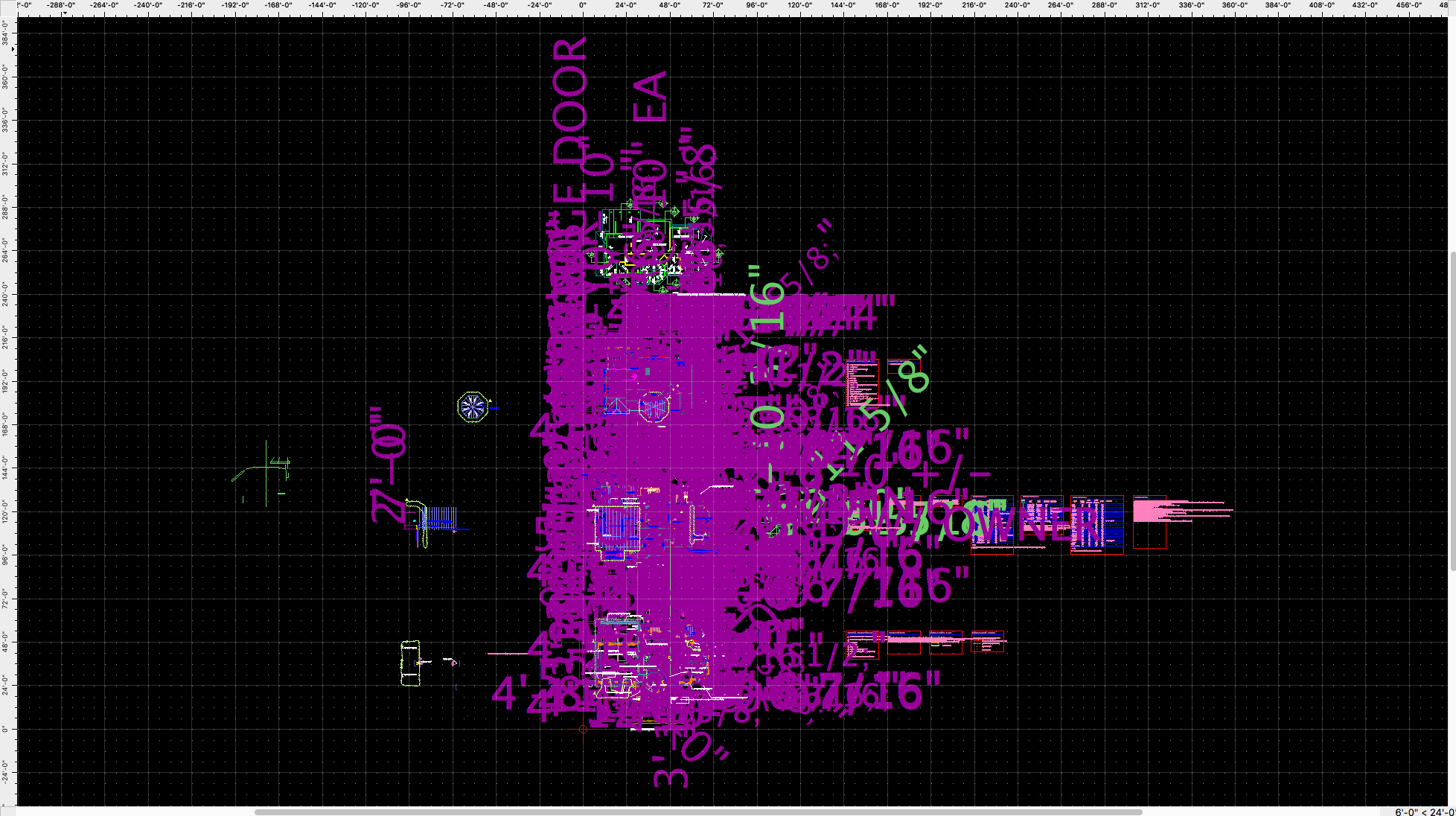
I’m using QCAD Pro 3.17.1.0 on macOS 10.12.4. I’ve found issues on the forum with AutoCAD imports, but I didn’t find one like this. When I searched for terms that related to the size of the dimensions, I found a few issues, but nothing related to this.
Someone sent me some AutoCAD files to test for importing. One is a .dwg file (I think that’s from a direct “save” and not an export) and a .dxf file. When I import either one into QCAD, I get something that looks like the attached image. The dimensions are huge and make it hard to see anything else.
Is this due to something I’m doing or something in the file (which doesn’t look like this on AutoCAD)? Is there a way to fix it?
I think I just solved it. Before I just clicked on the “Open File” icon on the tool bar and opened the file. This time, as I started to do that, it hit me that was probably the problem, so I checked the File menu, found, “Import,” and used that. I pasted it into the current drawing, which was blank, and everything looks great.
Should I be able to just open the file from the “Open File” icon or is that what I was doing wrong?
I would call it “Workaround”. Not a fix. However - it looks like it works …
Yes - it should work with “Open” the file. Something is wrong with the AutoCad file. The proper procedure - in my opinion - would be to fix the problem and save the file so that you never have to deal with this issue again. If this “imported” new file is working for you - save it as the new AC source file.
I’d post a copy of both the .dwg and .dxf version of the AutoCAD files, but they’re our house plans, from the architect, who has been wonderful about sharing all his data with me on the plans, but we’ve also discussed that the files he creates are proprietary and one condition from early on was that I would not be sharing them with anyone.
Since this works, and it’s not too much of a pain, I can work with this for now. I find it interesting that when I import the file and paste it into a blank drawing the scaling isn’t an issue, but it is with a direct “open.” Is this something I should report as a bug?
If you are confident to send them to a named QCAD Moderator via PM then I can assure you that the file will stay confidential - we never share them or make them public. We respect confidential material to 100%!
No - it isn’t a bug. If you open the drawing directly it will use the DIM settings from the original file. In this case they are wrong!
If you import it into an other drawing it will use the DIM settings from this “other” (target) drawing. And they are usually correct …
I’ll ask him about it. Since I gave him my word, I have to do that. I think there’s a good chance he’ll agree.
Okay. Just checking, just in case. It sounds like, then, that this confirms that there’s something odd about the dim settings in the original file.
Is it possible I could open the file in a text editor (is it XML or something similar?) and extract some settings or sections and send those for information on the issue?
That would make it more difficult than necessary. Check the DIM settings in a new/virgin drawing and compare them to those AC DIM settings. Adjust the AC settings regarding the new drawing and see what happens.
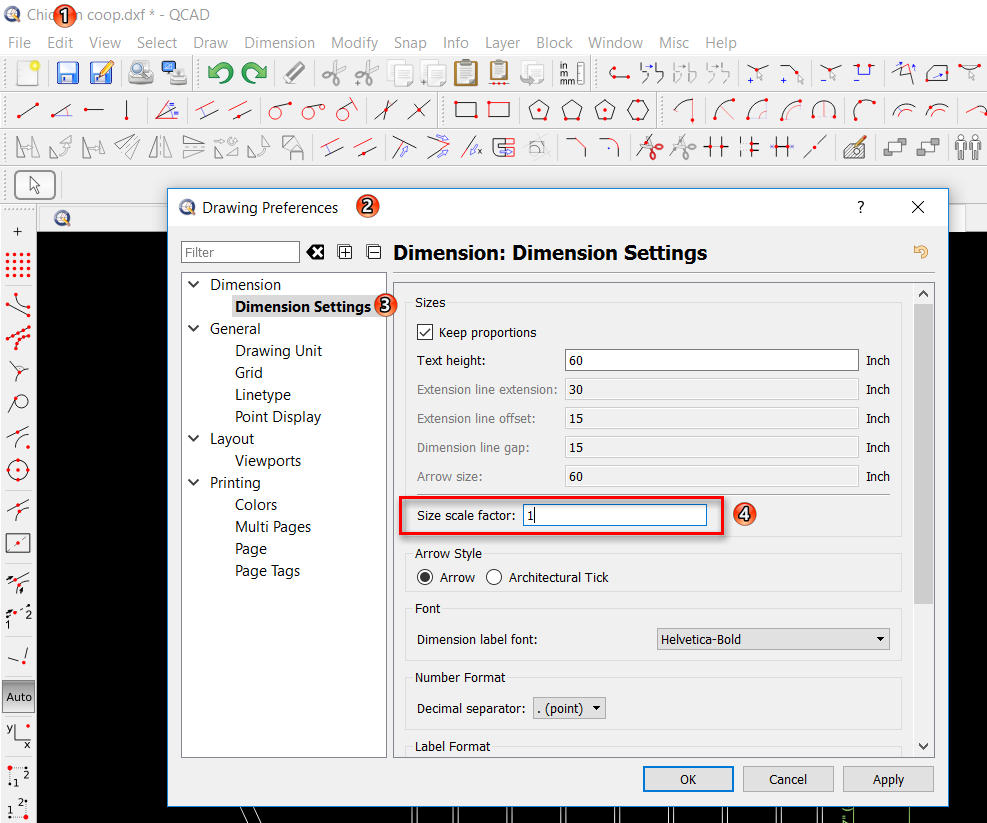
You will find the settings below: Menu/Edit/Drawing Preferences/Dimension/Dimension Settings
On a new drawing, my DIM settings are 1, when I import the AC file, the DIM settings are 48.
So I guess that explains a lot, but when I change the DIM setting on the imported file to 1, it doesn’t change the size of the numbers, it just makes the line width they’re drawn with thinner.
Also, I noticed, in Drawing Preferences, if I go straight to clicking on “Dimension Settings,” I get nothing - no controls at all. Just the same gray area on the window that is where the controls should be. If I go to any other setting first, then to “Dimension Settings,” I get the Dimension Settings. So it doesn’t show if I click on that item first. I have to click on another item, then click on it.