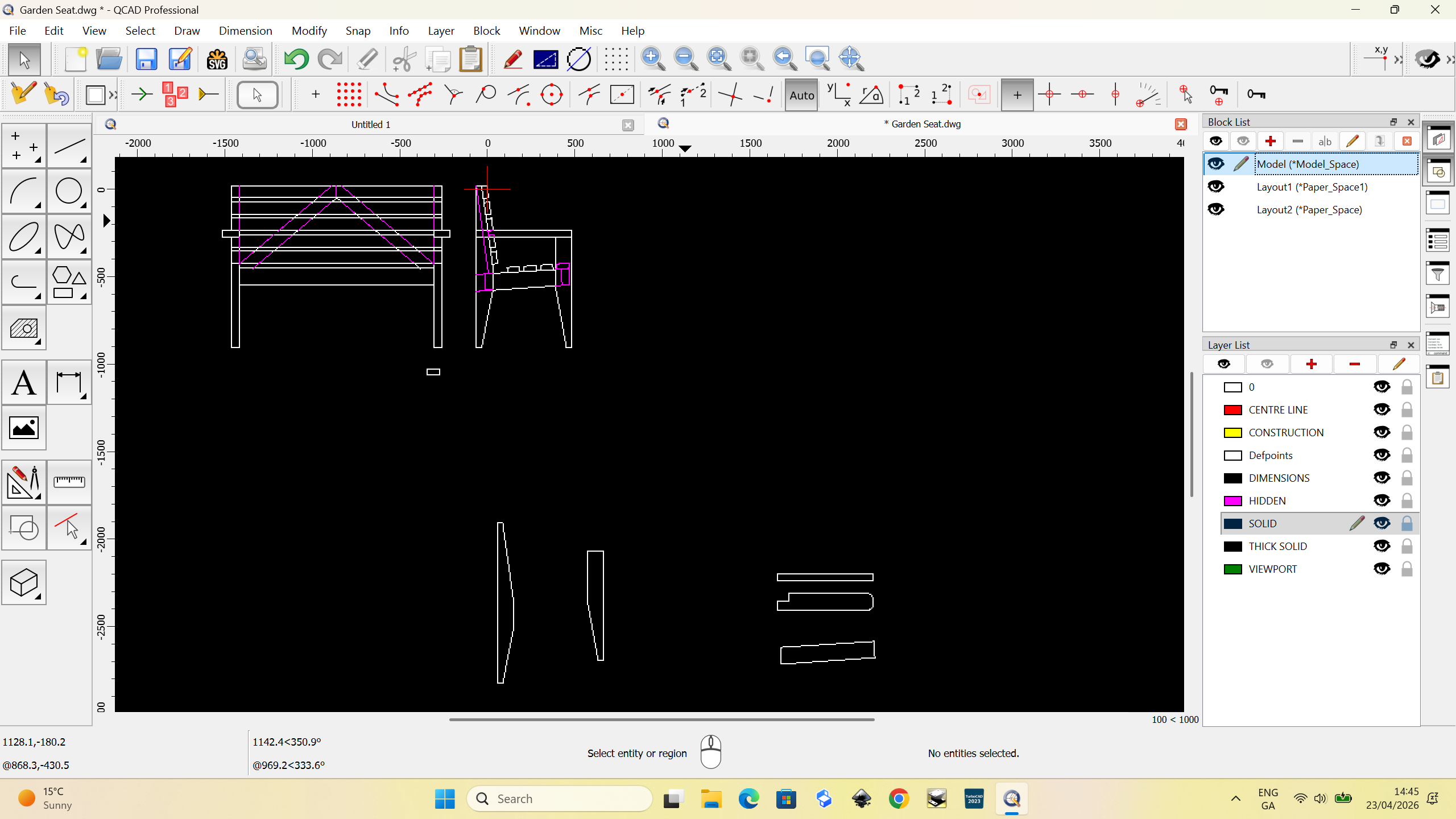
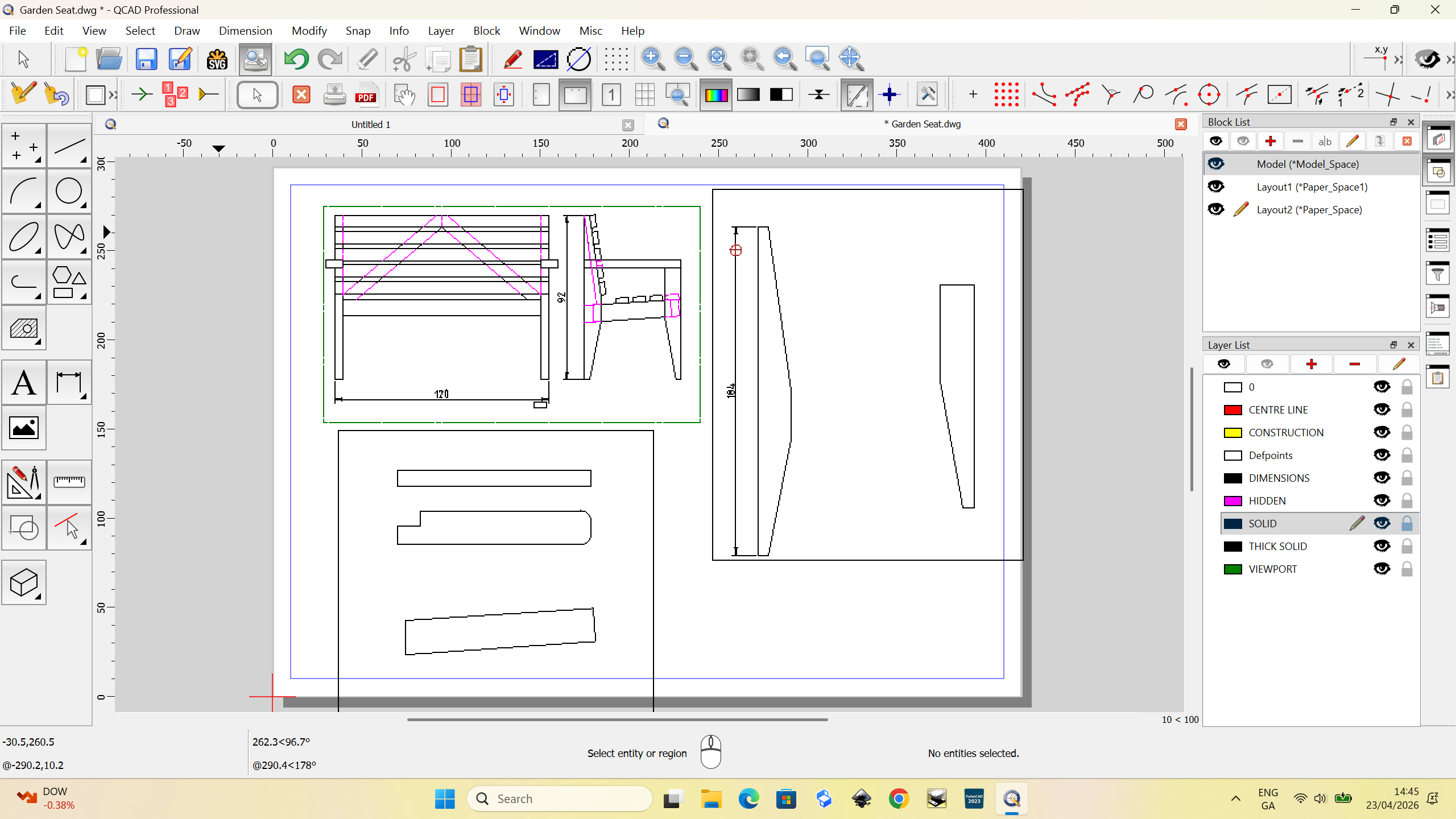
QCAD Version: 3.3.6
Operating System: windows 11
How do I …correct the dimension
QCAD Version: 3.3.6
Operating System: windows 11
How do I …correct the dimension
Please provide more context such as a screenshot and attach your drawing file, so we can help you efficiently, thanks. Please double-check your QCAD Version as you likely meant 3.32.6.
You are right with the QCAD version. The drawing file and screen shots will be attached.
May I suggest that when making a new layout that the drawing size could be entered at that time so that we can have different sized drawings for printing in the various layouts.
Could you also increase the number of scales as 1 to 5 and then 1 to 10 is too wide a spread
Garden Seat.dwg (25.7 KB)
You can change the page size of a layout by editing the layout and then choose
Edit > Drawing Preferences > Printing > Page
You can indeed enter any scale you want.
For the dimensions, please indicate what the problem is you are facing. What part are you trying to dimension, what value do you expect, what do you see instead. Please be as specific as possible, so we can help you efficiently, thanks.
Draw a Square in Model space of 300 x 300 and place a viewport.
Add this to layout space and with a scale of 1 to 5.
Add dimensions to the resulting square in layout space and these will show a dimesion 60 x 60.
Is there a way to produce the correct dimensions.
Yes, either enable auto scale in the options toolbar while creating the dimension:

Or enter the desired scale factor manually: