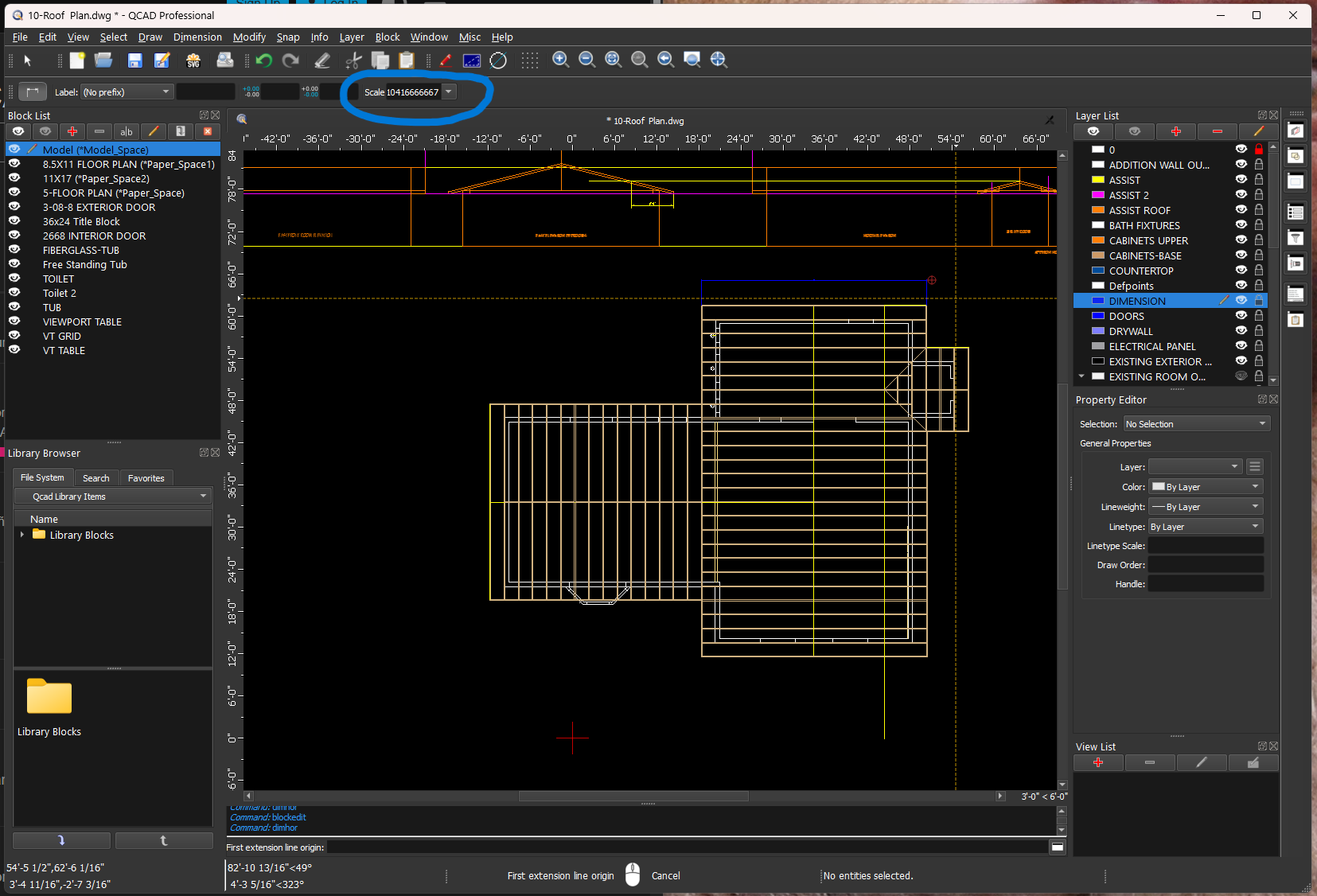
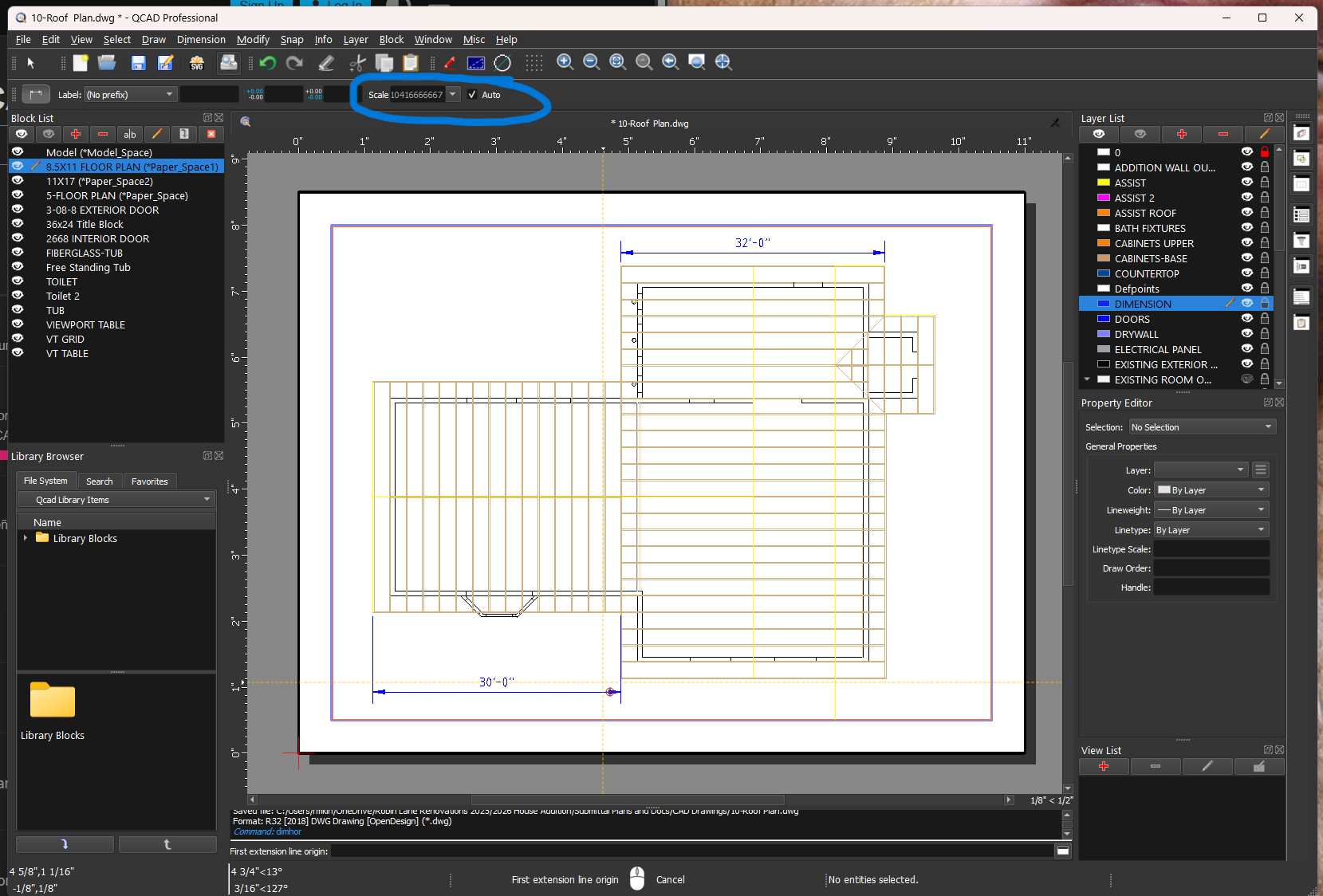
Hi, I am having a strange issue with dimensions in paper space vs model space. When I dimension in paper space, which is where dimensioning should happen, the auto dimension changes to the correct value. When I go back to model space and dimension, “auto” adjust does not change back to 1:1. I only do temporary dimensions for layout purposes in model space and have noticed this often since the incorrect value is being placed. It throws off the layout. Once this starts paper space viewport seams to change and the scale such as 1/8” =1’0” no longer works and displays 1” =1” however, the drawing fits on the page, meaning the paper seems to be changing size to fit a larger drawing.
I have attached 2 screen shots, one of paper space with the scale circled and model space also with the scale circled. Model space should be 1:1. I have also created a test file with a large rectangle to dimension that shows the size difference between the paper space and model space dimensions. I have been using Qcad for many years and this is the first time this has happened.
The scale value that is entered is remembered between tool uses (independent of paper space or model space). If the scale is set to “Auto”, the value is not remembered. However, if you switch off “Auto” and terminate the tool, the value is remembered and used next time in both model space and paper space.
Note that you are applying a global scale in your layout (Edit > Drawing Preferences > Printing > Page). This is highly discouraged when using layouts. You should decide to
either use a global scale only and avoid using layout and viewports
or
use viewports and scale the viewports but leave the global scale 1:1
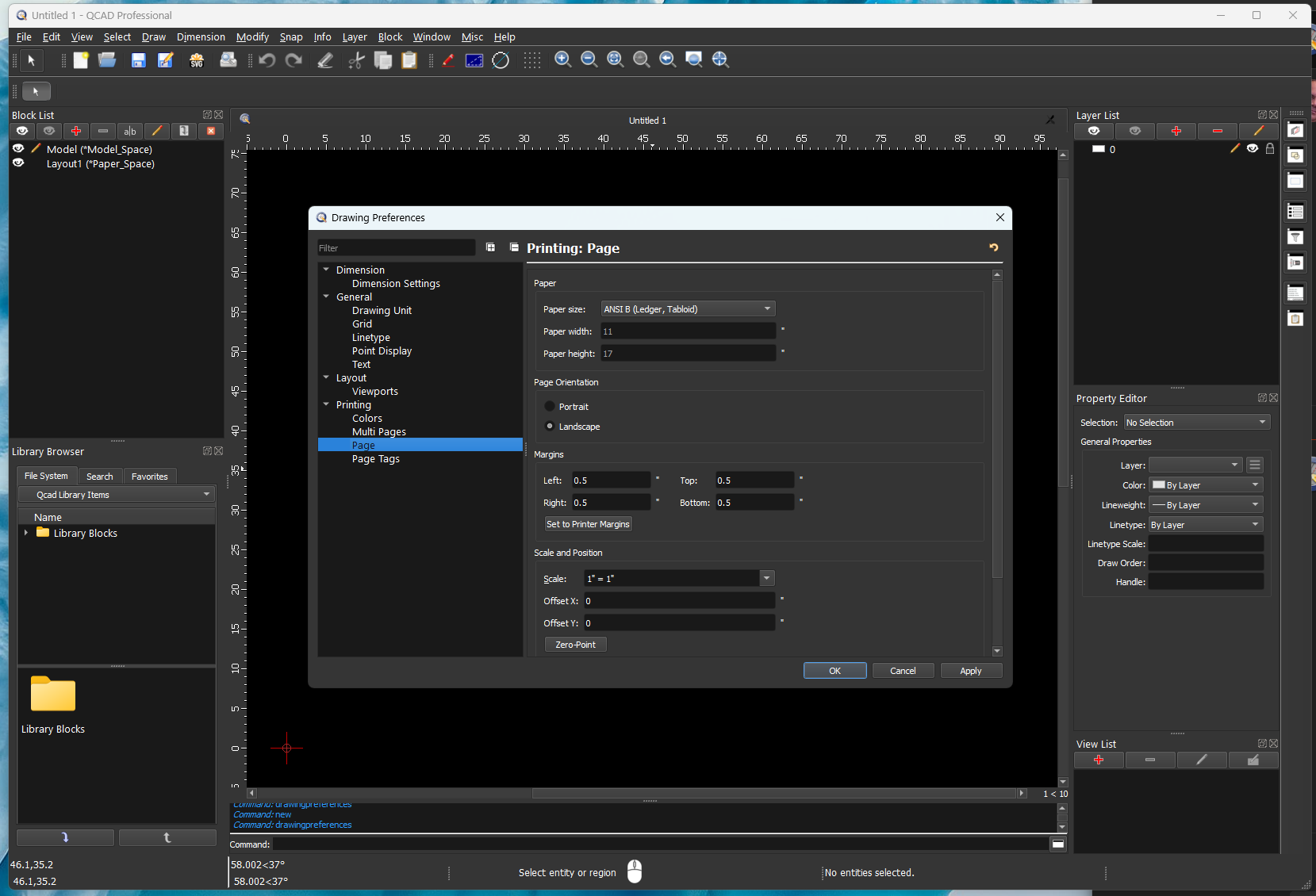
Andrew, thank you for the reply. I looked at the global scale on the setting page you described, and I could not find a change to the scale. I would never change this setting as I know it is not good practice. I do have “auto” checked for dimensions in the layout. See attached screen shot of the (Edit > Drawing Preferences > Printing > Page) setting as it appears on my system.
I have since looked at the issue I am having a little closer and found some other odd behaviors. I have a video of what is happening located on dropbox here: Video of Issue. First, when my pointer is in the layout page, the scale for viewport is active. When I move the pointer off the layout into the gray area I return to 1:1 scale. If I then go to model space scale is indeed 1:1. But if I go directly from layout to menu to select model space without entering the gray area the scale does not change. Also strangely going off the layout and then back on makes the viewport very small in the bottom corner of the page. I have not made any changes to settings when this happens. Leaving viewport it returns to normal size.
In the video attached you will see that I do change the overall scale of the dimension to make the text larger and easier to see. This should not affect the dimension displayed. I am not sure what is happening, it seems very strange. Maybe I need to reset the configuration. Any advice would be appreciated. Thank you for your time and great work on this software.