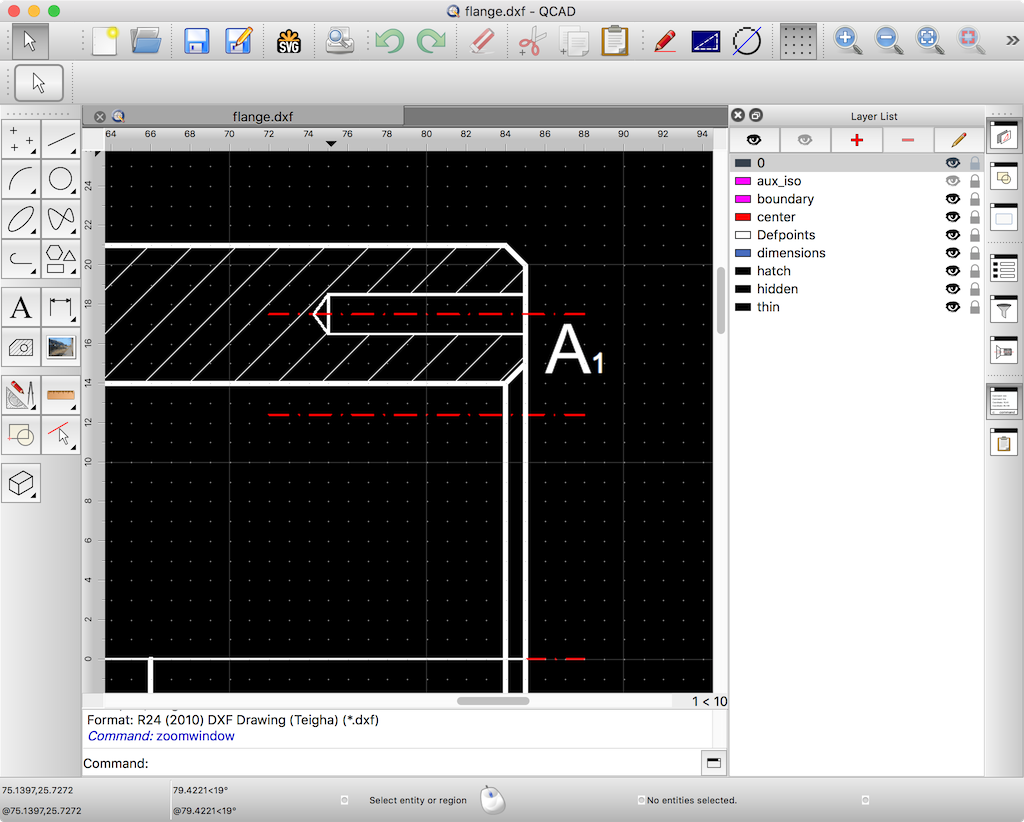
On new installations, QCAD features a compact CAD Toolbar at the left to access the various CAD related tools for drawing, modifying or selecting entities or to select the current snap mode.
The CAD Toolbar offers a very compact and comprehensible way to access the various tools available. Tools are structured into categories and snap tools are only shown when relevant.
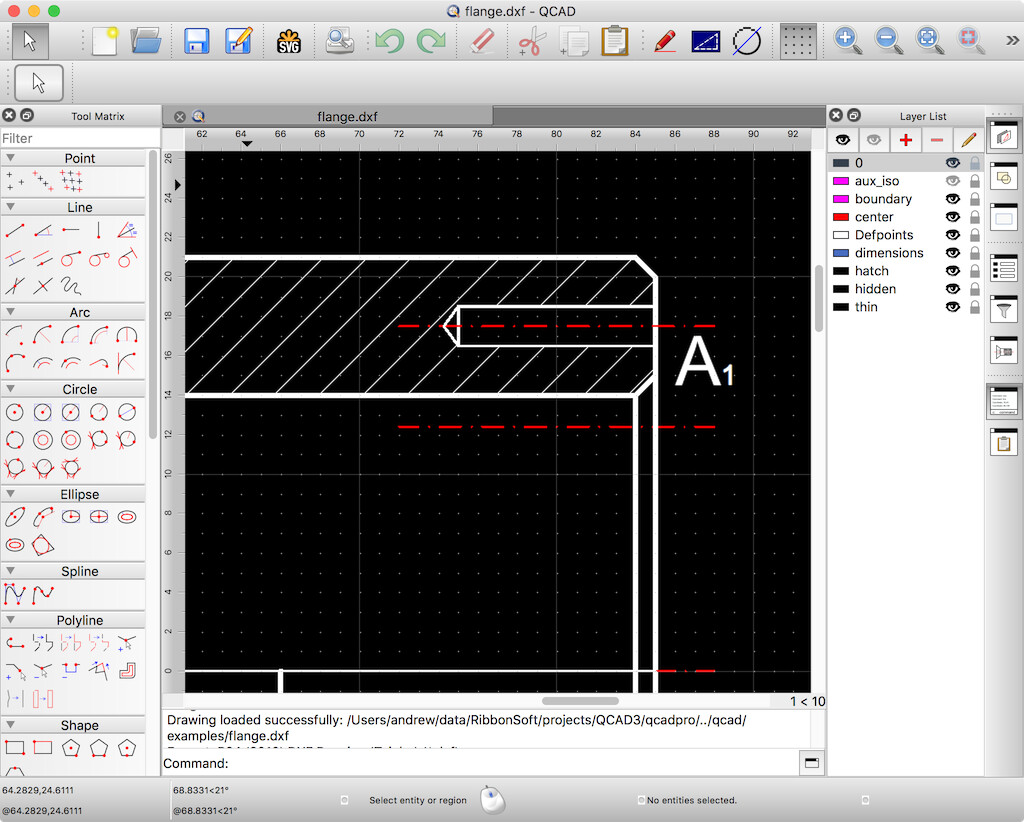
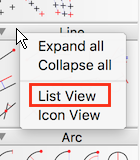
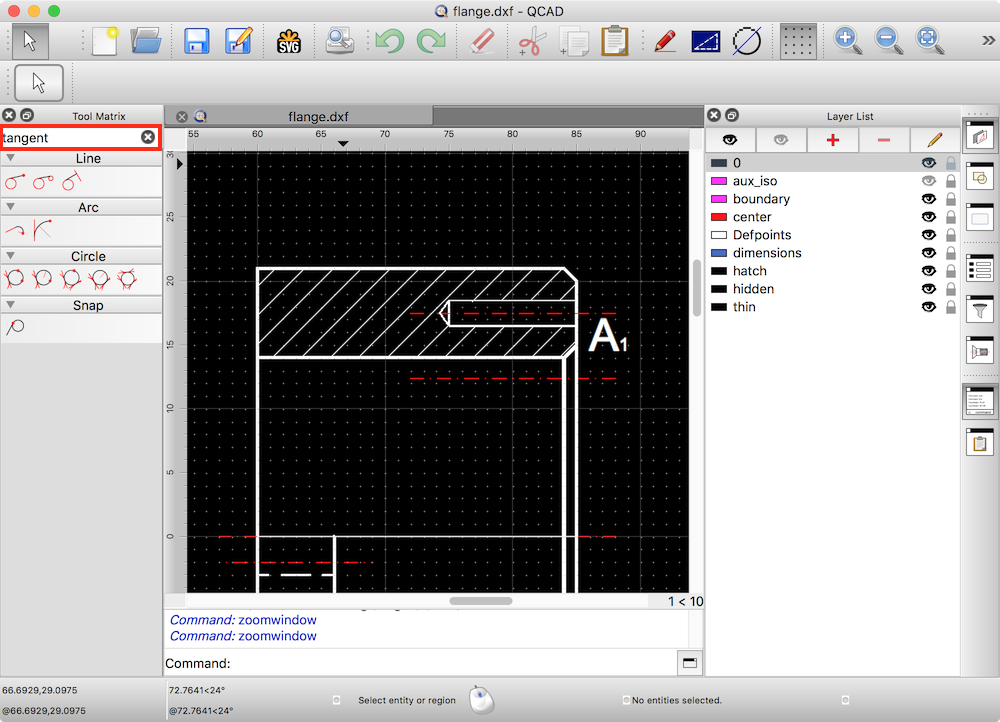
Starting with QCAD 3.12.6, an alternative widget can be used instead of the CAD Toolbar to access tools: the Tool Matrix. The Tool Matrix lists all tools available in one single widget without the need to click through a hierarchy. The tools are shown in a (scrollable) list with collapsible categories. A filter can be applied to the Tool Matrix to list all tools related to a certain keyword (e.g. ‘tangent’) or to search for a specific tool. The Tool Matrix can list tools as icons or as texts.
Displaying the Tool Matrix
To show the Tool Matrix instead of the CAD Toolbar, right-click into one of the tool bars at the top and choose Toolbars > CAD Tools. This hides the CAD Toolbar. Then right-click into one of the tool bars at the top again and choose Widgets > Tool Matrix to show the Tool Matrix.
Searching for a Tool
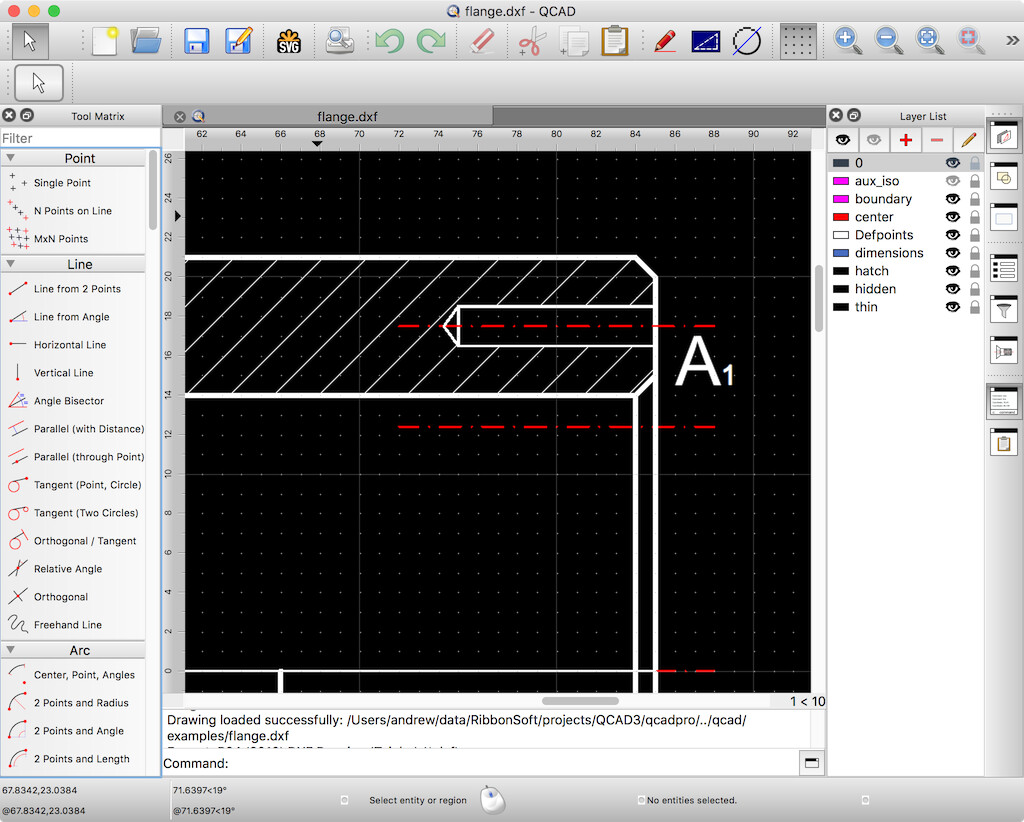
To search for a specific tool or list only those tools you are momentarily interested in, type a search text into the Filter text edit at the top of the Tool Matrix. This way, you can for example list all tools related to tangents:
Other Configurations
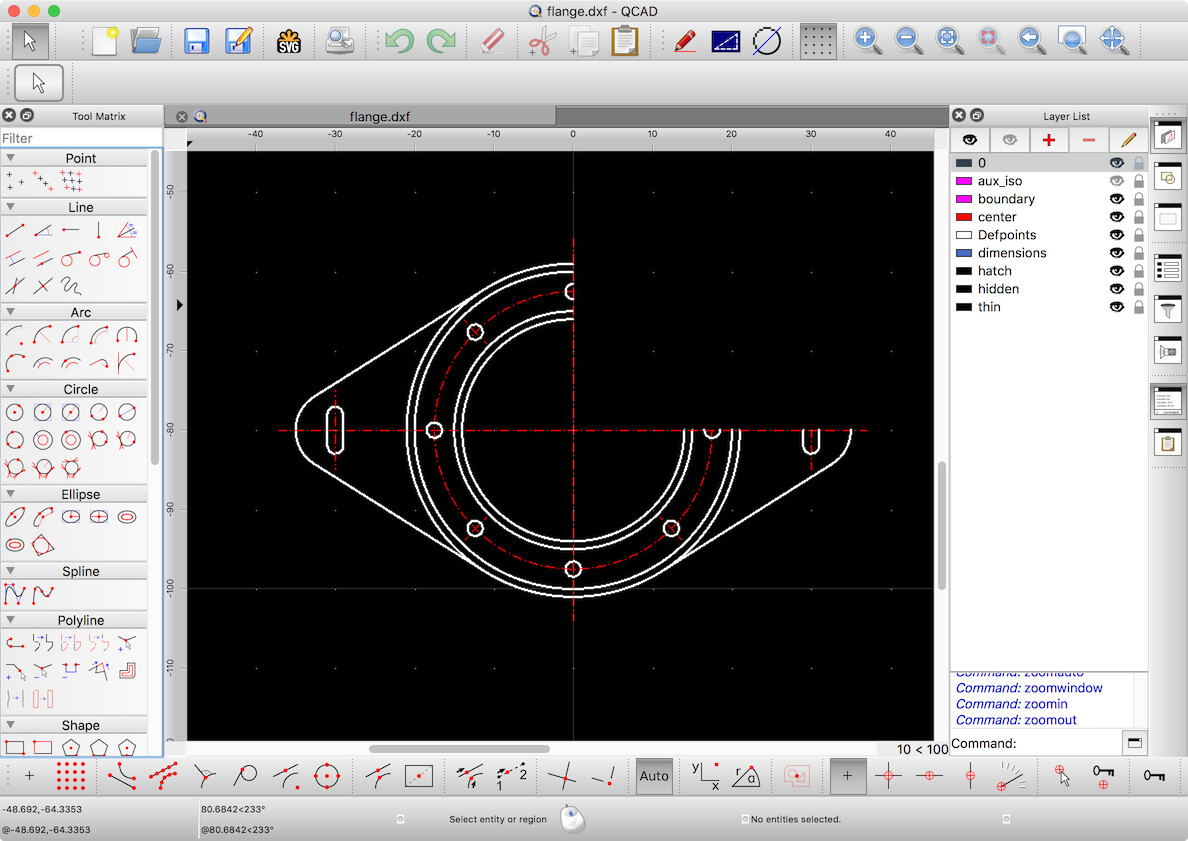
Here’s another configuration with snap tools at the bottom instead of the Tool Matrix (panels can be added or removed from the Tool Matrix in Edit > Application Preferences > General > Tool Settings):
Sure thing ! Here is it (click for full size)
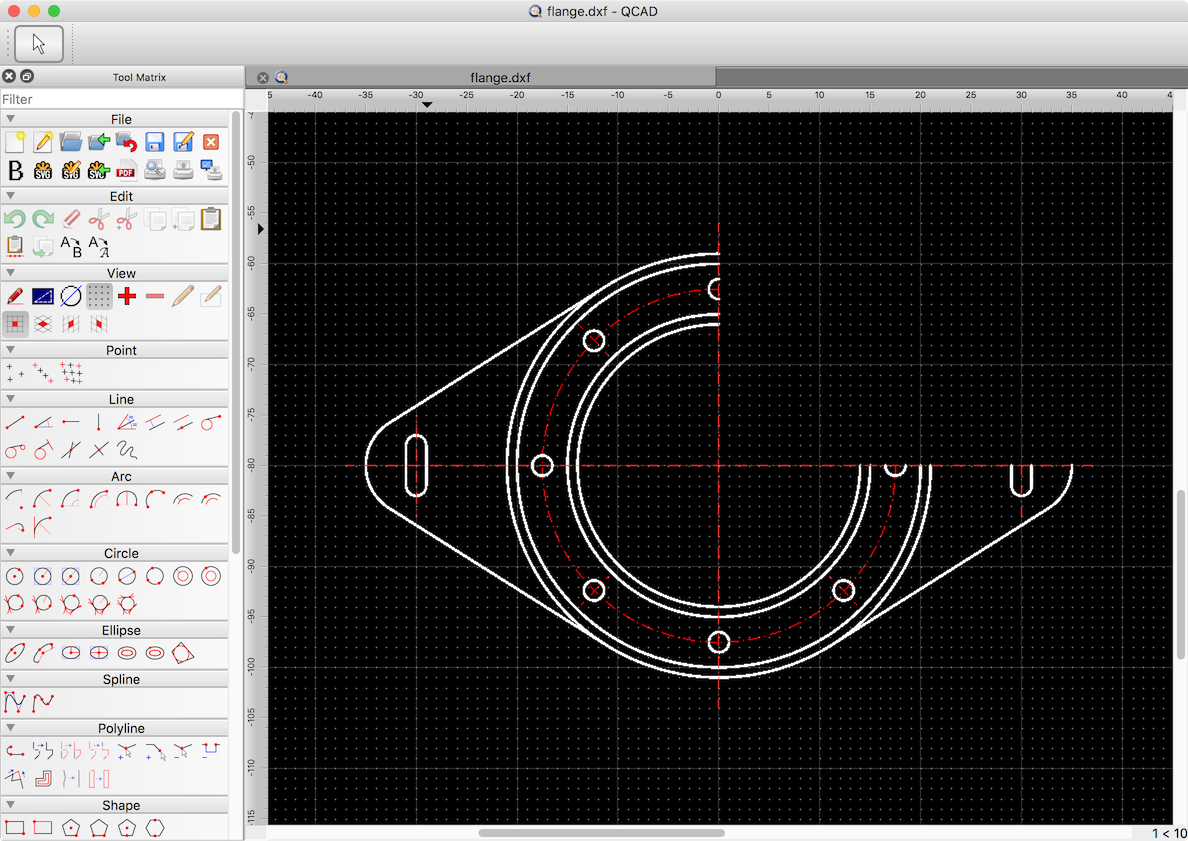
Most useful tools (for me, that is) on the Tool Matrix, tabbed with Layer and Block lists ;
Snap bar to the left ;
Command line tabbed with Script Shell and Selection filter ;
File tools with Tool Option (with enough space to the right) on top.
Also MyScripts menu that contains home-made scripts from which you can see “The Skelton ®” in the middle of the screen (that I use to start a new script ), thanks, btw, to a post you made a while ago that showed me how to create dialogs ^^
Enjoy
PS : Also if anyone new to Qcad scripting is interested in “The Skelton ®” and wants to start learning how to script, feel free to ask, I’ll gladly make a post to upload and explain the script.
Would it be possible to arrange with customized keywords, like “simple”, advanced" and “expert”
to show only a minimum for user there are begin with CAD, advanced for CAD-User, and expert for construction.


 ), thanks, btw, to a post you made a while ago that showed me how to create dialogs ^^
