Hi
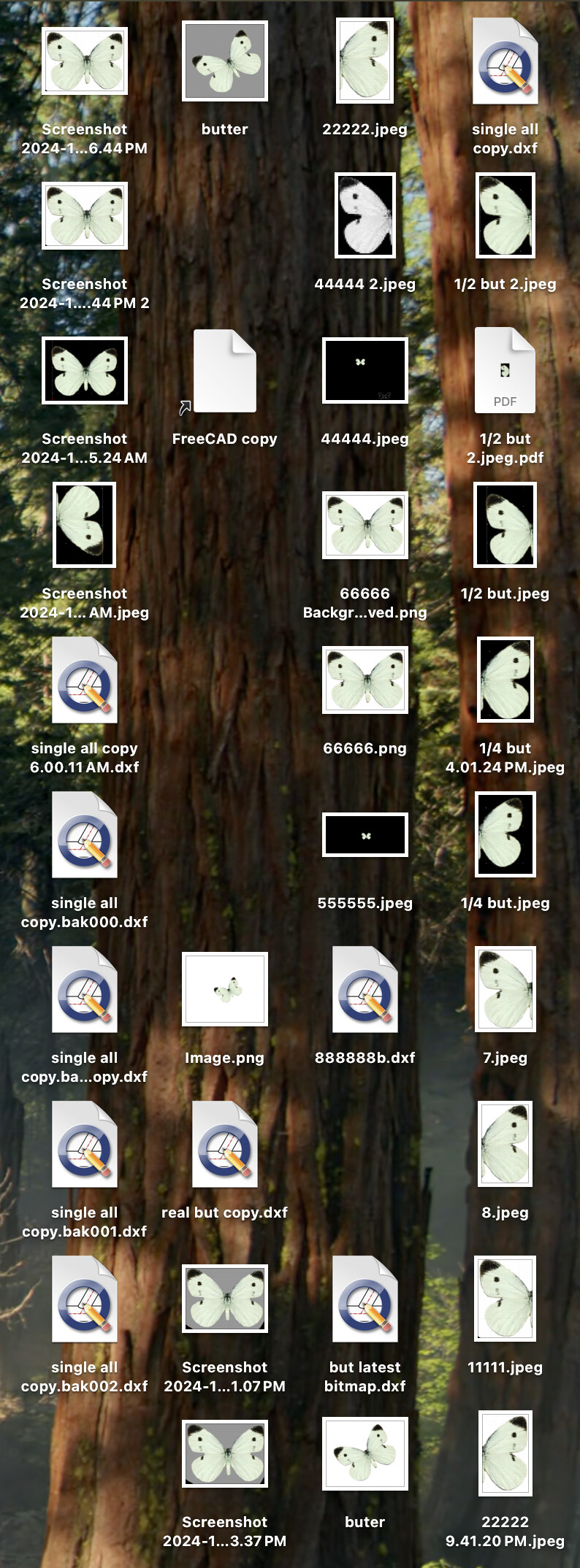
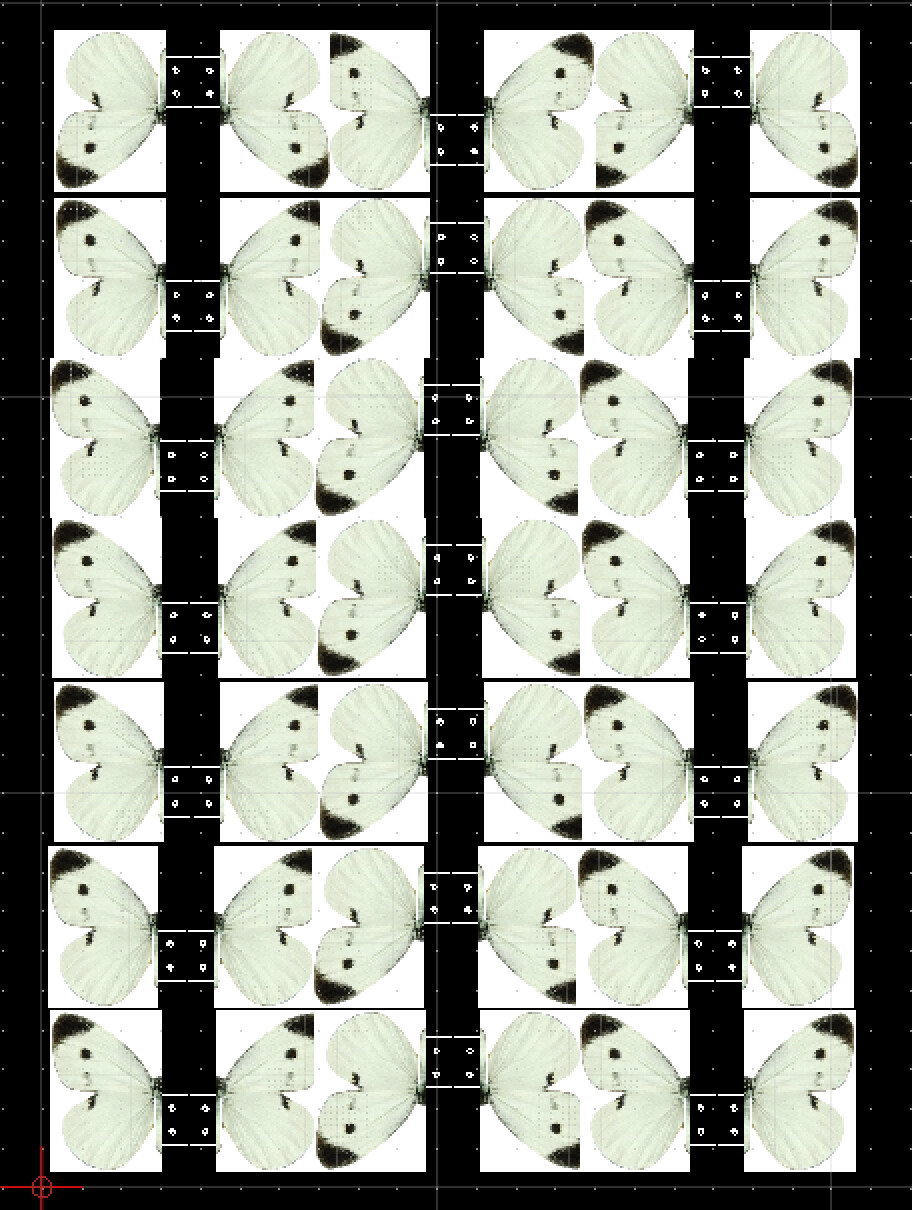
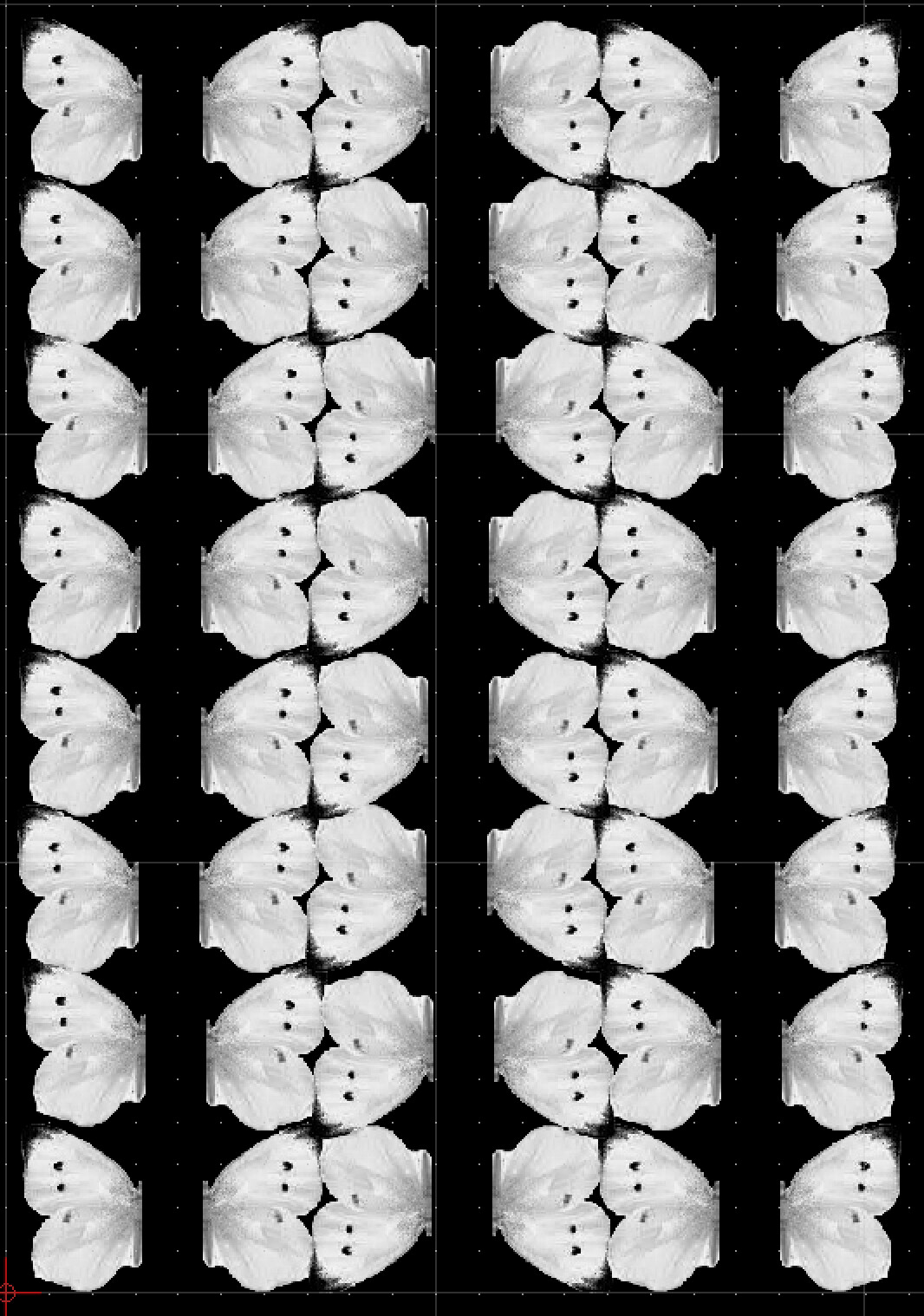
When trashing my unwanted files etc ( as per screenshot ) the bitmaps disappear.
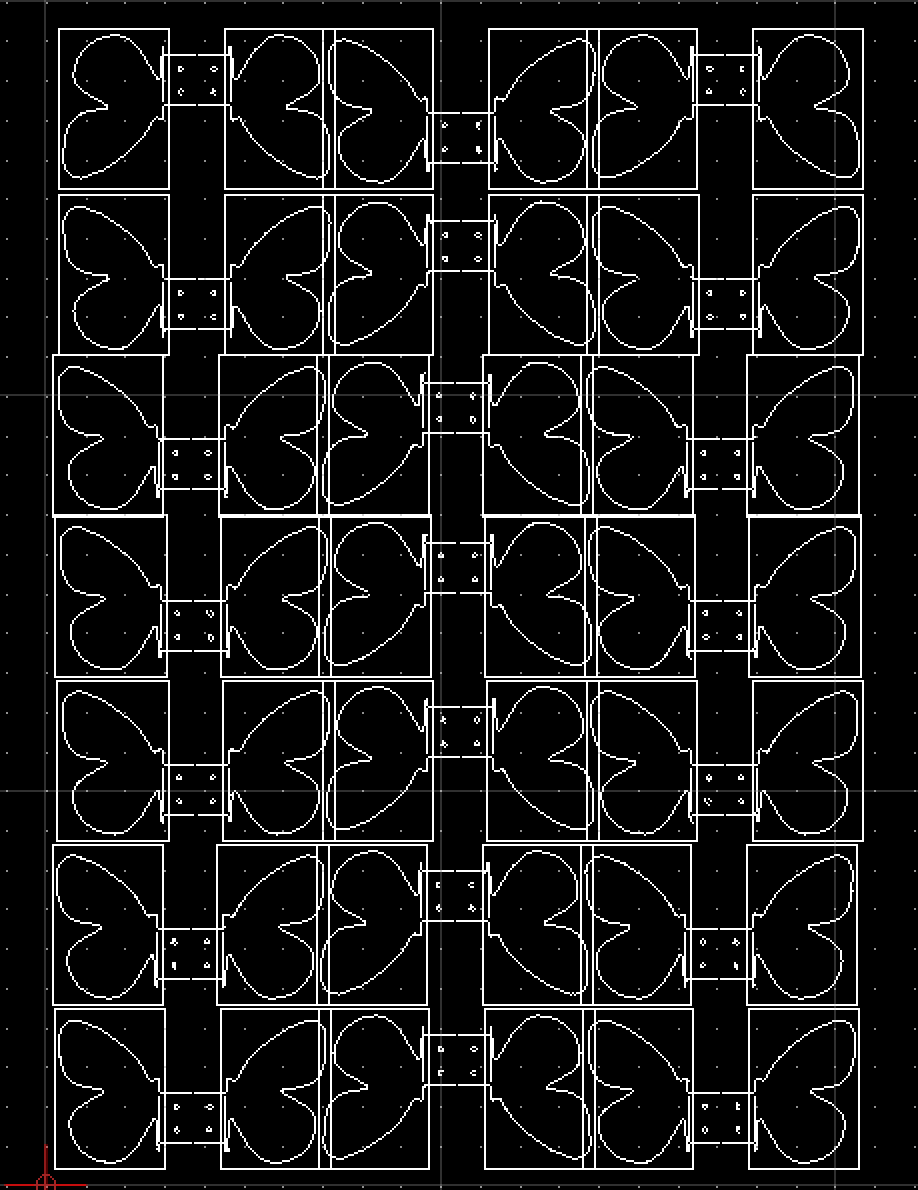
The draft lines remain–but the bitmaps go.
When dragging all trash onto desktop–the Bitmaps appear.
I have tried unsuccessfully to find which file is causing this.
Please can you advise.
Hi,
a bitmap in a drawing is basically only a link to the bitmap location. It is not physically part of the drawing. If you delete or move the bitmap Qcads link to the bitmap is invalid. The bitmap can’t be displayed anymore…
The remaining contour is not part of the bitmap - looks like a trace of it. That is why it is still visible.
That are features of a screen capture.
It includes all as displayed on the screen.
Including the QCAD background, Grid and Origin marker.
The drawing order of your bitmap is 342.
That of the lines is 339-341.
Meaning that the bitmap is covering the lines.
There are two options.
With the original file(s) export the intended area as bitmap (XB)
→ No additional Grid or Origin markers, free choice of background color.
But maybe you trashed those things too early.
Look in your Recycle Bin or alternative if restoring them is still an option.
The provided screenshot as PNG can be altered with a bitmap application.
Replacing red, Grid grays and black by a color of your choice.
These applications usually have a method to fill areas with the same color with another one.
Have you already considered and tested “Wipeout”? It would be another and less laborious way to solve the problem. All the supporting contours for Wipeout exist already in your drawing …
QCAD is a vector application. MS Paint, GIMP or Adobe Photoshop are bitmap applications.
Bitmap applications work on individual pixels.
In QCAD one can include bitmaps as they are. Rotation, scale, aspect ratio and fading are the only options.
What Husky means …
If you still have the DXF like in the screenshot “Bitmaps go when all old working files are trashed shapes.png” above …
Then you could perhaps use that as a collection of Wipeout boundaries …
But I doubt that it is straightforward.
Probably, it is a good idea to keep intermediate copies until finalizing your project.
Still, sometimes the Recycle Bin or trashcan can be a solution.
The biggest issue I have is that you combine vector art with bitmaps turning the result into a limited bitmap taken as screenshot.
Remind that bitmaps don’t store the actual size except that they are X by Y pixels large.
Also, a single pixel on your screen is not per definition a square, it can be somewhat elongated or it is a triangle of a red+green+blue dot.
Something that is 300 pixels wide will be one inch wide on paper at 300 dpi or 1/2 inch wide at 600 dpi, all depending the scale factor.
Screen resolution is typically far less … 72, 96, … dpi.
Vector art stores the actual size and that can be printed in any scale on paper, as exact as possible.
A mix of vector art and bitmap art can still be treated as exact in any scale.
Imagine that you cover / mask everything you don’t want to see with a kind of solid hatching. You can use the already drawn outlines of the butterflies for this.