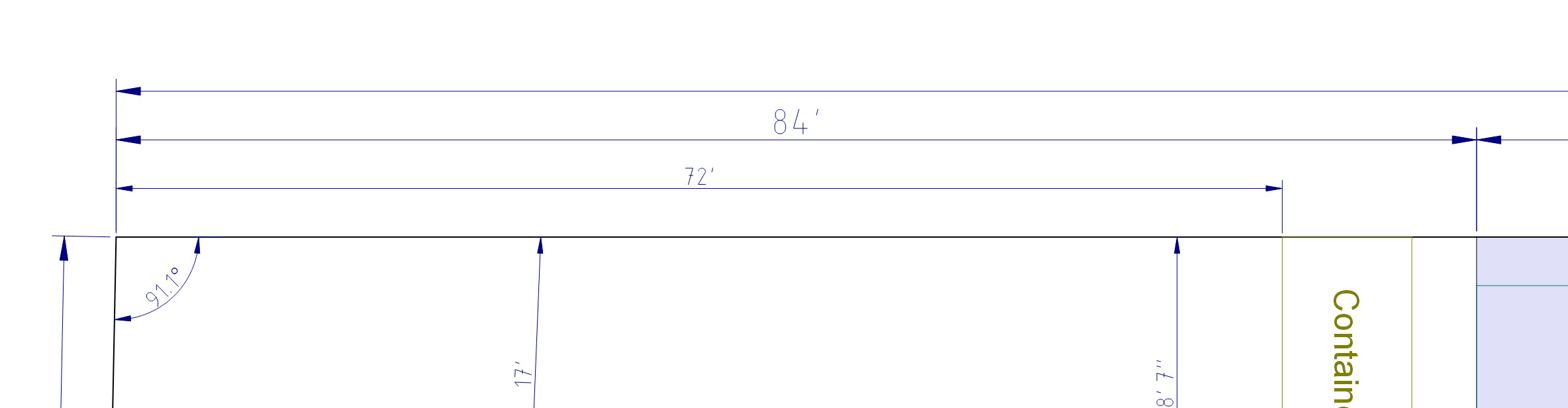
Win10Pro64, Qcad 3.27.6. At some unknown point in my design, the font size used in measurements has changed. I’m attaching a snippet that shows both sizes.
I know about changing Drawing Preferences > Dimension > Dimension Settings > Text Height. Changing that value scales all of the measurement fonts in the drawing, and so the larger ones are still larger; smaller ones still smaller.
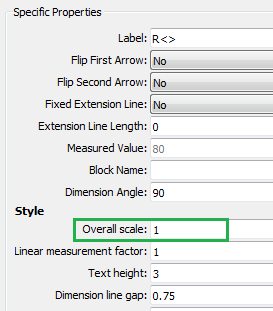
I found another thread that talked about using the property editor to change “Scale” for a particular measurement. The only “Scale” that I see is Linetype Scale, and that doesn’t seem to have any effect on anything.
All new measurements seem to use the smaller font. Short of deleting and replacing all of the measurements using the larger font, can anyone suggest a way that I can make all of the fonts identical?
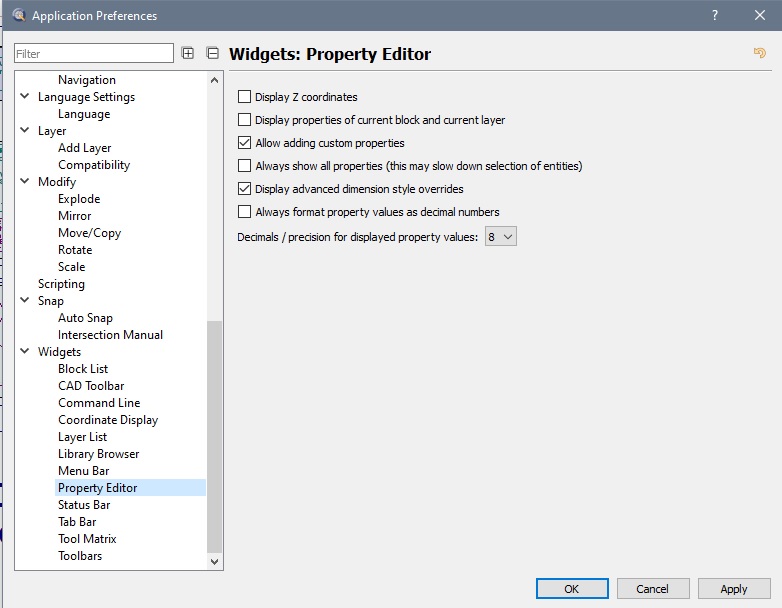
It was already checked. And I tried the extreme sequence of unchecking, quitting the app, restarting, rechecking, quitting again, and restarting again. Nothing changed.
Even with all the Property Editor options cleared under App.Prefs. I still have two style properties.
Style .. Overall Scale
Style .. Linear factor
Over to Andrew …
… As proposed by Husky, an example file might help …
… Still, these are GUI settings …
Perhaps resetting your configuration might help, but I wouldn’t recommend that at this point.
That would be a bridge too far if you’ve customized the QCAD GUI in any way.
In all cases I would make a copy of the QCAD.ini file, named “QCAD.ini.old” or so.
One then can always revert to that and one could even compare both ini files (e.g. with Notepad++).
Copy/revert to this when QCAD is closed …
I usually retain the ‘DockappWindows’ string under the [Appearance] header to keep my overall widget setup.
Most other things are fairly as it comes by default.
Thanks to all who are helping with this. I’m not comfortable posting the entire design on a public forum, but I created a subset of the design. I removed most of the layers and blocks, retaining just the layer with the measurements. I’ve confirmed that the same situation exists with this test file as with the actual file. I’m attaching that file, as well as my .ini file.
I also tried the suggestion of resetting the configuration. After backing up the .ini file, I clicked the yellow arrow in the upper right corner of the drawing preferences box, then clicked okay to close the window. I quit Qcad, and compared the saved .ini file with the current one. Only one value was different… DARKSTYLE. The reset had essentially no effect on anything.
The file format is R15.
The Property Editor shows the Style section over here.
The ‘larger’ Dims have indeed Overall scale factor 1.5
If I create a new Dim this is simply factor 1.
Hi CVH. Can you explain your comment “The file format is R15.” I have no idea what that means, or how it affects my work.
And are saying that when you open my .dxf file with my .ini file, you see the style section in property editor, even though I don’t? If so, what does this suggest?
@wendi: Something went wrong with your drawing dim settings - overwrite it with the same settings and it will work as expected.
Open drawing,
Right click on Layer “Measurements” and select all measurements on that layer,
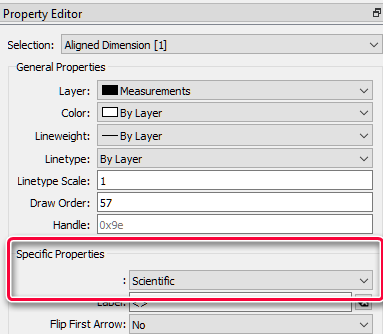
Check the Property Editor for “Specific Properties”.
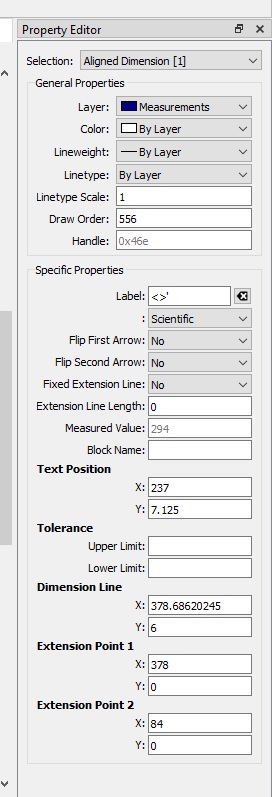
The first field (which should be named “Linear format:”) shows a setting named “Scientific”. Use the drop down and change it to … Scientific. Yes, I’m not kidding or drunk - that is the correct “new” setting. Note: It needs to be new selected to get it to work!
Observed that too in the screenshot by wendi (in second place).
That would reflect that something is broken in the Property Editor naming …
Has that been resolved with the proposed re-entry?
That would only reset the current active drawing preferences back to default.
But I asume that you did that in the Application Preferences there it turned of the ‘Dark’ mode.
The default User interface theme is ‘Default’.
To fully reset your configuration please refer to:
If you keep a copy of the QCAD3.ini to revert to, it would not hurt to try it out.
QCAD CE will only export files in the R15 format.
An overview of the QCAD features:
Features in blue italic are available in QCAD Professional only.
And that includes Styles …
Andrew, does that explain why Dims are suddenly drawn in Overall scale factor 1.5?
Thank you again to CVH and Husky. I selected all of my measurements, and changed the unnamed property from “scientific” to “scientific” as Husky suggested, and all of my fonts went to the same size! It worked, but… all of the arrow styles changed from “arrow” to “architectural tick!” New measurements correctly used arrows, but nothing I tried would change the existing ones. So all things considered, this “fix” is problematic.
Clearly, something has gotten out of whack in my drawing. To be honest, I realized days ago that I could simply delete and replace the measurements that had the incorrect font, but I wanted to understand what was going on, and I viewed this as a learning experience. Having now spent several days on it, and of course, taking up a lot of time from generous strangers, I think it’s best to stop spending more time on this. I fear we may be chasing multiple problems, and will never get to the bottom of it all. I will simply replace the erroneous measurements, and move on with my project. Again, I really appreciate your efforts, and thank you all for your time. Wendi