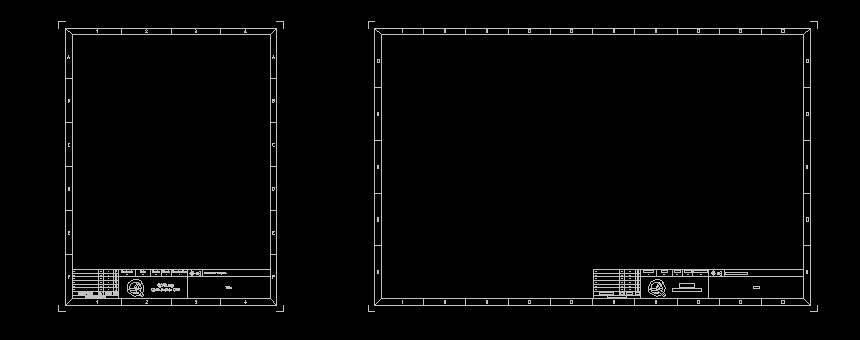
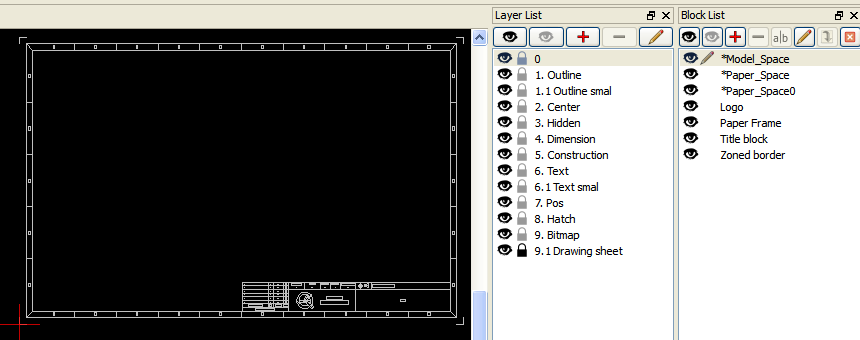
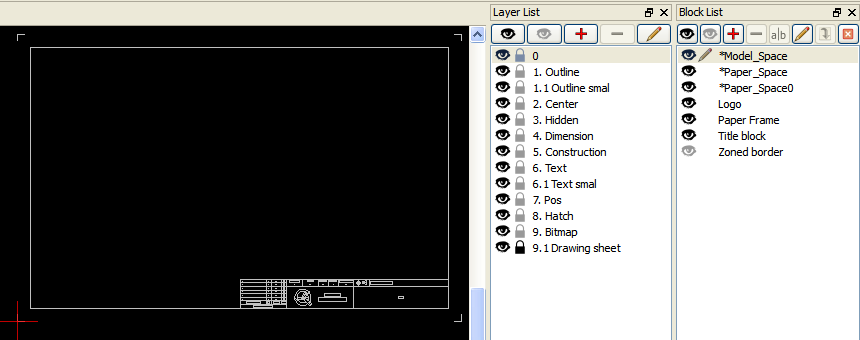
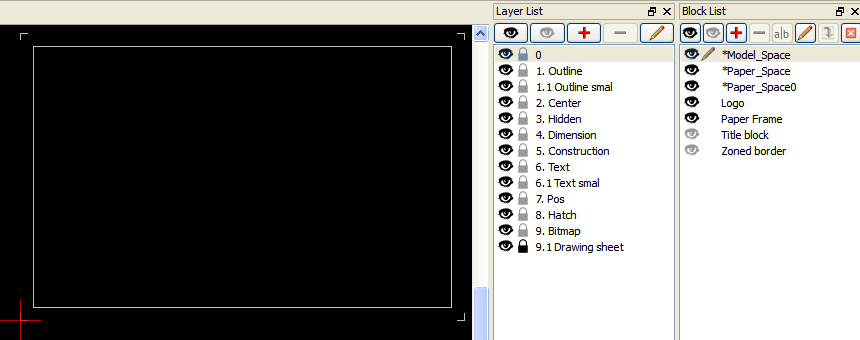
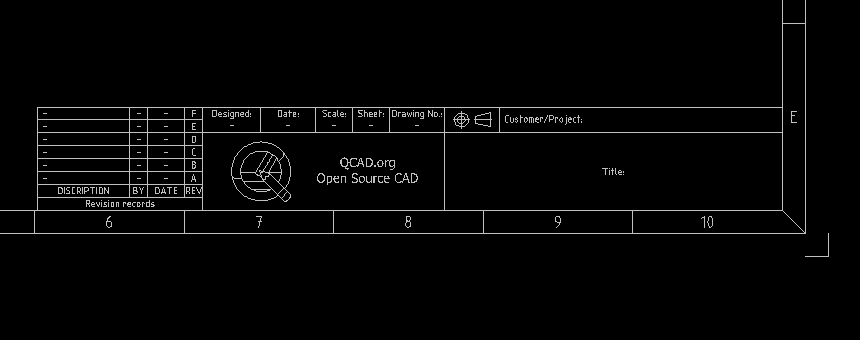
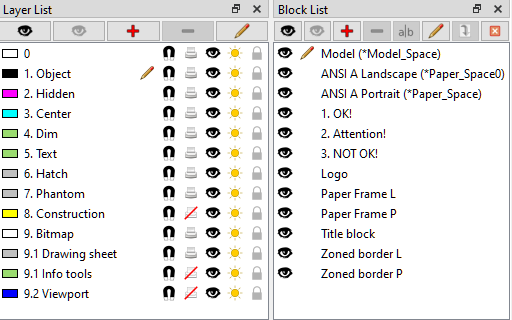
Well organized imperial Drawing sheets incl. Pr-defined Layers and Blocks for:
Paper Frame,
Title Block incl. Projection symbol 3rd angle (US),
Zoned Border (Sub-Block of Paper Frame),
Logo / Name (Sub-Block of Title Block - changeable!),
Drawing unit: inch
Linear Dimensions:
Dimension height: 1/8" (0.125 inch),
Format: Fractional, Precision: 1/32"
Scale 1"=1"
Easy to configure - visible/invisible how ever you like it,
Easy to copy/scale - everything on one Layer (Drawing sheet),
The “Drawing sheet” Layer is default locked - if you have to put Data into the Title Block you have to unlock the Layer …
ANSI A / 8" x 11" Portrait,
ANSI A / 8" x 11" Landscape, ANSI A.zip (26.4 KB)
ANSI B / 11" x 17" Landscape,
ANSI C / 17" x 22" Landscape, ANSI B+C.zip (26.4 KB)
ANSI D / 22" x 34" Landscape,
ANSI E / 34" x 44" Landscape, ANSI D+E.zip (29.8 KB)
Projection symbols, Projection symbols.dxf (85.1 KB)
or … at one go .zip ANSI A-E.zip (90.5 KB)
All downloads are free for QCAD user!
Customize it how ever you like it!
Hey - how nice is that!
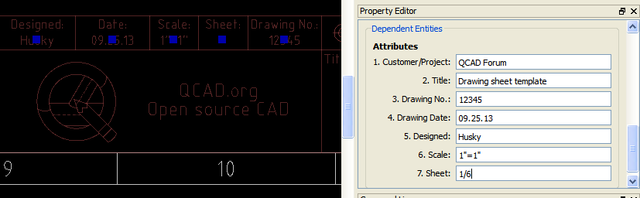
With the new QCAD 3.3.0 release we have more and nicer possibility’s to handle i.e. the entries in a title blocks or a revision block.
It’s called “Block attributes” and that was a reason for me to update the Drawing sheet templates with this new feature of QCAD.
QCAD 3 - Video Tutorial (Q&E).
“Drawing sheet template with block attributes”
Zwf_FVmRgxE
Long story short:
You will find in the .zip the same Drawing sheet templates as above but now with the new block attribute function. ANSI A-E with block attributes.zip (102 KB)
Have fun!
Hi, these are great. I would like to amend these to metric and United Kingdom standard paper sizes but I’m struggling to amend the templates successfully.
I am unable to hear the tutorial. I have logged into YouTube and still can not get the audio to play. Is this located somewhere that I could download the file?
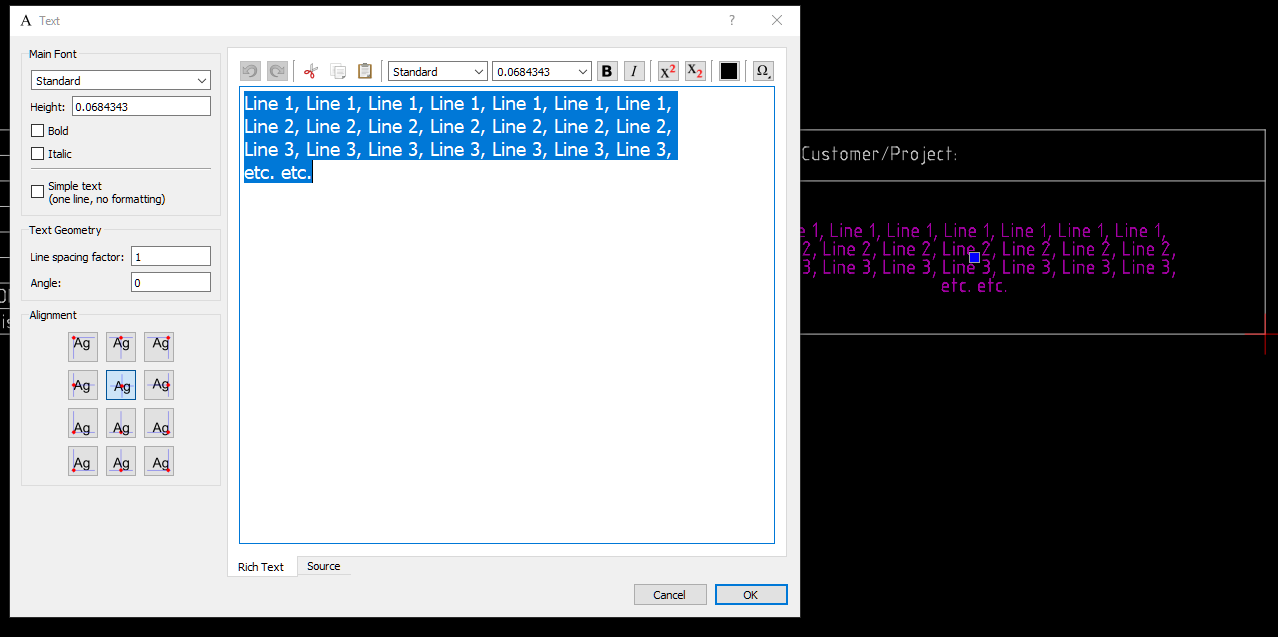
So, then you’re saying by inserting text manually in the block, not through use of the field, right? Also, I take it Standard if the font you’ve used for the rest of the text in the title block?
The reason I ask is that some applications have a special key sequence to insert a carriage return into a text string (spreadsheets for example) and I wanted to make sure I wasn’t missing something here.
Been looking for free 2D-CAD sw as I have no longer access to MicroStation (used that about 15+ years). After seraching online, seems QCAD is a decent alternative and will give it a shot!
Now, my 1st question is, are these (or similar) drawing sheet templates available in metric units (A4-A0)?
If not, I wonder can these be “converted” to A4-Ax sizes easily? Pretty sure someone has done that already…
If I try to insert and explode these, they seem to crash my QCAD 3.25.2.0.
I’m using a Mac. I did this:
Unzipped the directory, Did QCadPro/Preferences/Widgets/LibraryBrowser, Add unzipped file path
Closed and Restarted QCAD
LibraryBrowser/ Navigated to the folder, drug the “ANSI A” into modelspace and placed it at 0,0
TX (to select the block)
XP (to explode) – QCAD crashes out.
I tried this with ANSI E and it also crashed.
I tried again with the libraries/templates/metric/din_a3_m_landscape.dxf template from the distribution and I was able to eXPlode it into components as expected.
I was attempting to explode these ANSI templates this to see if I could access and edit the attributes, since the attributes didn’t seem to show up under the entire, unexploded block.
These templates are great.
Question: When I open them they show up in “model space”. Is that where they belong or should they be cut and pasted into the layout (paper space)?
Or should they be imported instead of opened?. Sorry … lots of questions.
thanks
Rich
Yes - they are made for model space. Imported or opened? Depends on your workflow.
Layout? Now we are talking …
If you work with QCAD on a semi professional base I would recommend to use them as a source to create a proper template. Those templates could content every basic what you need for new drawings like layouts, layer, blocks etc.. QCAD will duplicate those templates for new drawings (CTRL+N) - the original stays untouched …
In my case I created a template for all my basic layer and blocks, a paper space for landscape and one for portrait prints. When I start a new drawing I have already my “personal” default setup and just delete at the end of the job what I haven’t used. Yes, I’m lazy …
Husky.. thanks for the reply.
Sorry for all the questions.. I don’t want to start off going down the wrong path. I want to create a template for sure.
I’ve been accustomed to having the title block and such on the drawing sheets (or paper space as they are called here). Would copying that stuff onto the paper space cause any type of issue?
If you use my drawings as base unlock in Model_Space the layer “9.1 Drawing sheet”. Then select everything, copy with reference (0,0) into the clipboard, open a Paper_Space, paste the clipboard content to 0,0. Rename the Paper_Space regarding to the content.
Keep in mind that the easiest way to deal with different scales in Paper_Space would be to keep Border, Paper Frame, Title block etc etc in 1:1. A print out of Paper_Space is then also done in 1:1. If you need to scale something, even different scales, that is handled within the scale used in a Viewport.