How to arrange individual layers?
I want to arrange the individual layers in the right order so that some things are always on top.
Hi,
there is no layer dependency of the displaying order.
Layers (and Blocks) are simply listed in an alphanumerical order.
On creation each entity receives a drawing order.
Higher orders are drawn over lower ones.
One can edit the drawing order directly in the Property Editor.
Or one could use ‘Bring to Front’ (MF) and ‘Send to Back’ (MB) for a selected entity or a selection of entities.
There are also two PRO tools ‘Reorder’ (MO) and ‘Order Connected Entities’ (MC).
The order of things can be visualized with an order overlay (VO) in the view menu.
Remark that on saving and reloading, the drawing order is nicely renumbered again from 0 and up. 
Regards,
CVH
1 Like
@Husky
You should have quoted things that are related …
If we quote Andrews answers in the linked topics in full then there would be other misconceptions …
… All because QCAD continues to evolve.
MF, MB, MO and MC are displayed in the Modify Toolbar, in the Modification Tools and in the Tool Matrix.
But MO & MB are no longer listed in the Modify menu and there is no longer a Draw Order sub menu of the Modify menu … 
Regards,
CVH
On top …
DrawOrder.getCadToolBarPanel()
lists ‘WJ’ as shorcut but that will bring up the projections tools panel …
If we look closer then .getToolBar(), .getCadToolBarPanel() and .getToolMatrixPanel() are ruled out. 
Regards,
CVH
Thanks
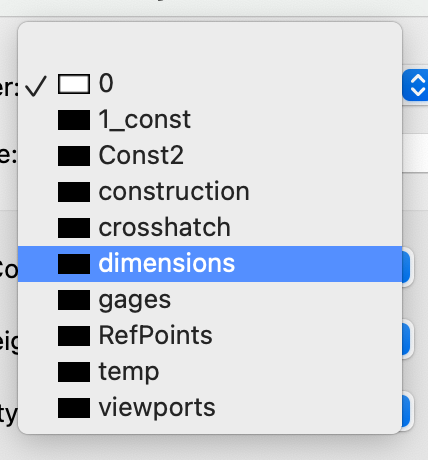
That’s exactly what I needed – You can’t change the layer order in the list of layers except by changing its name to sort differently or by changing its parent with the “Edit Layer”. (And once you choose a parent, you can’t seem to change a layer from having-a-parent to not-having-a-parent.)
You may want to name your layers “010 my layer”, “020 my other layer”, … to control the display order.
To change a layer to a top layer (i.e. no parent), edit the layer and set the parent layer to the first entry in the drop down list (empty).
1 Like