Please (re-) read the replies in the ‘other’ forum topics. P47021 P47017
Bottom line:
There is no quick draft preview, the dialog was/is essentially intended to select a printer device.
QCAD has its own specialized preview method build in and only starts exporting geometry after a device is selected. In the QCAD GUI on the background we can see that QCAD is itself in Print Preview mode.
The left half portion of the visible Toolbars is the Option Toolbar with (20) options related to the Print Preview mode.
Typically the Option Toolbar is arranged as separate and lower than the other Toolbars.
Please don’t shout, you can still edit your initial message and opt for normal text.
My apologies. I increased font size so I did not have to strain my eyes, I did not intend to shout (I think that is a term for using ALL CAPS anyway).
I have now found the ‘Print window…’ command (which I originally thought was to print the current window) so that centres the drawing area on the paper. That WAS the reason I really wanted to see what was being sent to the printer.
How it will be exported can be seen in Print Preview mode.
Grey is then outside the paper like in the QCAD GUI that is visible in the background of your screen capture.
That is far more correct than what a (limited in size) page preview of a printer dialog will be.
Typically geared to fit the content on a page somehow.
With CAD it is for example mandatory that a scaled representation is utterly exact.
It may that the printer is that not. Hence printer calibration.
Even paper itself is not stable.
Before we used plotters and special substrates with better stability.
Currently there is however an issue reported with Win11 (and others), the newer printer dialog’s and Portait <> Landscape.
‘Print window…’ is a newer addition … The ‘window’ is not geared to page size.
For a request of some users the ‘window’ aspect ratio should relate to the current selected paper type.
Optionally would be nice.
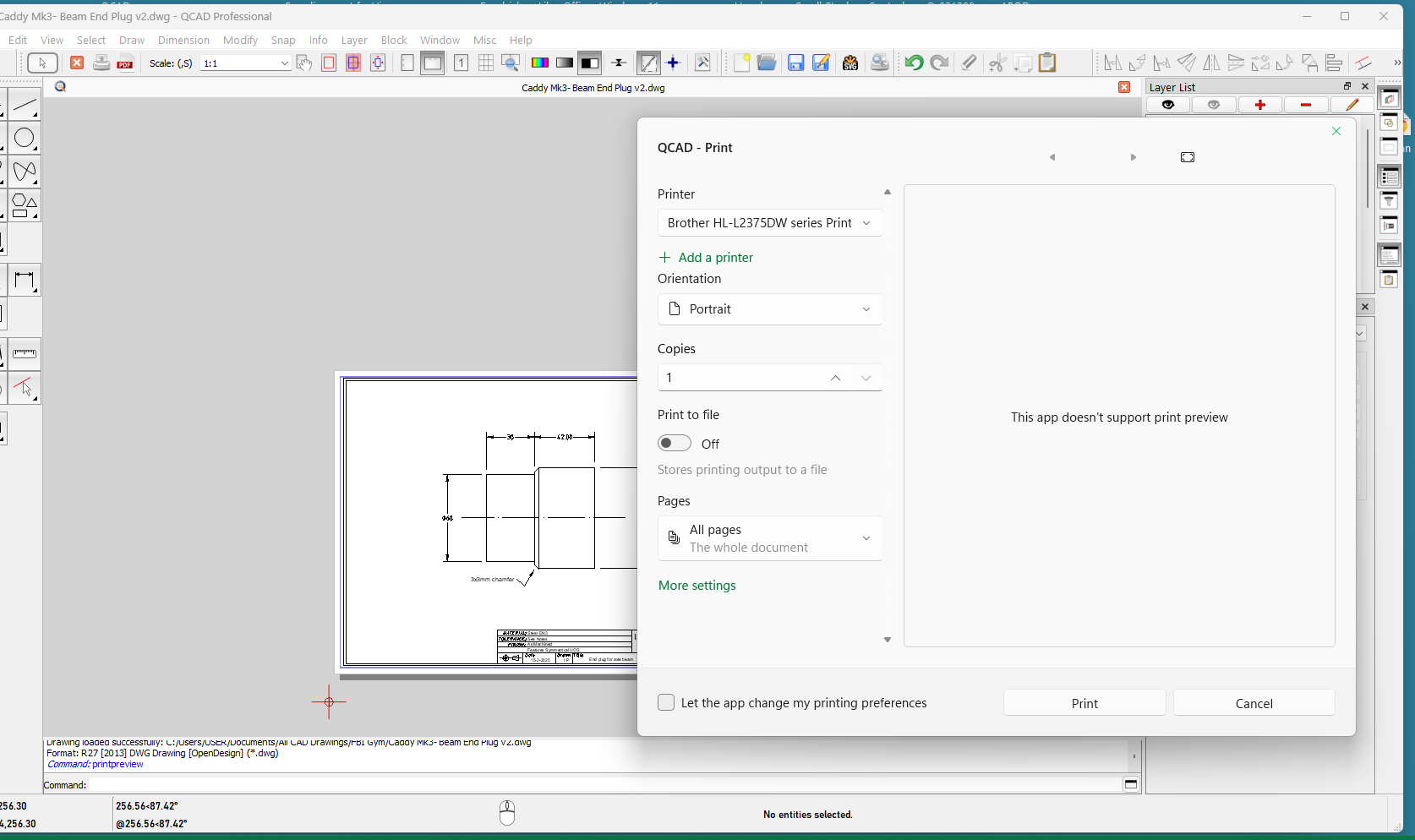
 In the QCAD GUI on the background we can see that QCAD is itself in Print Preview mode.